Create htaccess file WordPress step by step
Behind every smooth-running WordPress website lies a small but powerful file known as theCreate htaccess file WordPress . Despite its size, this file has a major impact on how your website behaves, loads, and protects itself from potential threats. Whether you’re a developer or a beginner trying to improve your site’s performance, learning how to create a .htaccess file for WordPress correctly is essential.
This guide will walk you through every step of the process in simple terms — helping you understand what the file does, how to create it from scratch, and how to safely edit it to enhance your website’s security and speed.
For a deeper technical overview, you can check this comprehensive WordPress htaccess tutorial that explains how the file interacts with your hosting environment.
By the end of this article, you’ll know exactly how to handle your .htaccess file like a pro — without breaking your site or running into confusing errors.



What Is the .htaccess File and How Does It Work in WordPress?
The .htaccess file, short for “hypertext access,” is a configuration file used by Apache web servers, which power most WordPress websites. It acts like a set of behind-the-scenes instructions, telling your server how to manage requests, redirects, and security settings.
When you create an Create htaccess file WordPress , you’re basically giving your website a command center to control how it responds to specific actions. It decides what happens when someone visits a broken link, how URLs are displayed, and even how fast your pages load.
- The File’s Role in WordPress
WordPress relies heavily on the .htaccess file for managing “permalinks” — those clean, readable URLs that improve both SEO and user experience. Without this file, many WordPress functions, including your site’s navigation and structure, could stop working properly.
- Why It’s Important
Here are the main benefits of creating and maintaining this file correctly:
It keeps your site’s links working properly after changes or migrations.
It helps redirect old pages automatically to new ones.
It strengthens website security by limiting access to sensitive areas.
It can speed up your website by improving caching and compression settings.
In simple terms, this file is your website’s personal rulebook, ensuring order, protection, and performance across your entire system.

Step-by-Step Process to Create Your .htaccess File in WordPress
Now that you understand what it does, let’s move on to how to in WordPress safely and correctly.
The process doesn’t require any advanced technical skills — just a bit of attention to detail and a clear understanding of where the file belongs.
1. Accessing Your WordPress Directory
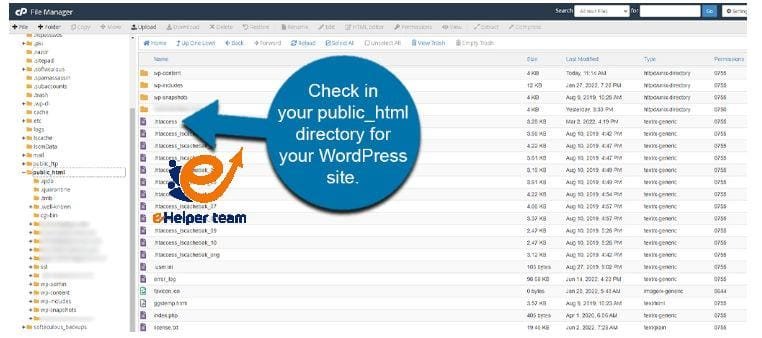
Your .htaccess file lives in the root directory of your website — the same place where you’ll find folders like “wp-admin” and “wp-content.” You can access this directory either through your hosting control panel or using an FTP client such as FileZilla.
If the file already exists, make a copy of it before making any changes. This way, if something goes wrong, you can quickly restore the original version.
2. Creating the File from Scratch
If the file doesn’t exist, simply create a new text file and name it “.htaccess” — make sure there’s no additional extension like .txt at the end. Once it’s in your site’s root directory, you can start adding the right configuration rules (or let WordPress generate them automatically when you save your permalink settings).
For a more detailed Arabic explanation, visit this useful htaccess file WordPress guide that breaks down each step in simple terms.
3. Testing the File
After creating or updating the file, go back to your WordPress dashboard, open “Settings,” then click on “Permalinks,” and save your changes. This action ensures that your site regenerates and applies the new rules correctly.
Common Issues You Might Face When Editing the .htaccess File
While the process of creating the htaccess file WordPress process seems easy, small mistakes can cause visible problems on your site. Let’s explore the most frequent ones and how to fix them without panic.
1. Internal Server Errors
If your site suddenly shows a “500 Internal Server Error” message, it usually means there’s a missing or incorrect line in your .htaccess file. In such cases, you can rename the file temporarily to deactivate it. Then, go to your WordPress settings, re-save your permalinks, and let WordPress generate a new version automatically.
2. Images Not Loading or Displaying
Sometimes, after editing the file, images might stop showing up. This happens when certain directives accidentally block image folders or links. If this occurs, review the file and make sure you didn’t restrict access to “wp-content/uploads.” For more tips, you can follow this guide that explains how to fix WordPress image issues efficiently.
3. Losing Access to the WordPress Dashboard
An overly restrictive rule in your file might block access to your admin area. To resolve it, connect to your website via FTP and remove or rename the problematic file. Once you regain access, regenerate a clean version.
4. Conflict with Plugins
Certain WordPress plugins also modify the .htaccess file to add their own settings, such as redirect managers, caching tools, or security plugins. Always check compatibility before installation to prevent overlapping rules.
Why Customizing the .htaccess File Can Improve Your Website
When you properly Create htaccess file WordPress , you open the door to stronger protection and faster performance. Customizing it according to your site’s needs allows you to take control over how your content loads and how your visitors experience it.
Here’s how thoughtful customization helps:
Better SEO: Clean URL structures and smart redirects improve visibility.
Improved Speed: The file can be configured to tell browsers to cache static content longer, reducing server load.
Enhanced Security: You can block malicious bots, restrict access to admin files, and prevent hotlinking of your images or media.
Error Prevention: Well-configured .htaccess rules prevent broken links and 404 pages from hurting your SEO.
The key is to make small, intentional changes rather than copying random configurations from the internet. Always test your website after each modification.
Boosting Website Speed with an Optimized .htaccess File
A properly configured .htaccess file doesn’t just help with redirects and security — it can significantly improve how fast your WordPress website loads. Page speed is one of Google’s key ranking factors, and slow-loading pages can drive visitors away before they even read your content.
When you create an .htaccess file for WordPress and optimize it, you can instruct your browser to cache static content such as images, stylesheets, and scripts. This ensures that returning visitors load your pages much faster. Moreover, by managing server compression and browser caching through .htaccess rules, you can reduce the number of requests your server needs to handle.
It’s also worth mentioning that your htaccess file plays a role in controlling access to unnecessary resources, which lightens your website’s overall load. You can read more about enhancing site performance in this helpful guide on how to improve WordPress performance for a complete breakdown of speed optimization best practices.
1. How It Impacts SEO
Search engines love fast websites. By using the htaccess file to control caching and loading behavior, you’re not just improving user experience — you’re also sending positive signals to Google, which helps your content rank higher.
2. Maintaining Balance
However, don’t over-optimize. Overloading your .htaccess file with unnecessary rules can cause conflicts or make troubleshooting harder later. The best approach is a minimal but purposeful configuration that aligns with your site’s structure and goals.
Enhancing Security through Smart htaccess Rules
Website security is one of the biggest concerns for WordPress users, especially since the platform’s popularity makes it a frequent target for attacks. The htaccess file can serve as your first line of defense, offering an added layer of protection before hackers or bots even reach your admin panel.
When you create an .htaccess file for WordPress, you gain the ability to control who can access which parts of your website. For example, you can restrict access to specific directories, block suspicious referrers, and stop hotlinking — when other websites use your images directly, draining your bandwidth.
1. Protection Against Unauthorized Access
By carefully setting access rules, you ensure that sensitive areas like your admin dashboard or configuration files are visible only to you. This helps prevent unauthorized login attempts and brute-force attacks.
2. Preventing Content Theft
Hotlinking protection keeps other sites from stealing your content and slowing down your server. This small adjustment can save bandwidth and keep your site running smoothly.
3. Reducing Spam and Malware
Some security plugins extend these protections automatically by inserting additional directives into your Create htaccess file WordPress . Always double-check compatibility between your plugins and the existing rules to avoid conflict.
Integrating htaccess with SEO and Plugin Settings
“Your .htaccess file plays a surprisingly big role in your SEO strategy. While WordPress handles most of your SEO-friendly structure through plugins like Yoast or Rank Math, the .htaccess file ensures that the underlying server responds correctly to user requests and search engine crawlers, as explained in this guide to creating an .htaccess file.
1. Improving Crawl Efficiency
When search engines crawl your website, they rely on proper redirects and clean URL structures to understand your site’s hierarchy. A well-maintained .htaccess file ensures smooth crawling by avoiding duplicate pages and broken links.
2. Working with SEO Plugins
SEO plugins often modify your Create htaccess file WordPress file automatically. For instance, they may add redirect rules, canonical tags, or sitemaps. Before saving major changes, always back up your file to prevent data loss or conflicts.
3. Monitoring Results
Once you’ve optimized your .htaccess file for SEO and speed, keep an eye on your performance using tools like Google Search Console or PageSpeed Insights. These tools can help you identify issues that might originate from misconfigurations.
How to Back Up and Restore the .htaccess File
Whenever you modify your .htaccess file, it’s crucial to create a backup first. This simple habit can save you hours of troubleshooting if something goes wrong.
The easiest way is to download a copy of the file to your computer before making any changes. You can do this through your hosting control panel or FTP client. If an error occurs after editing, you can restore the previous version instantly.
If you accidentally delete or corrupt the file, WordPress can generate a new one automatically. Simply navigate to your WordPress dashboard, open “Settings,” click on “Permalinks,” and save the changes — Create htaccess file WordPress will rebuild a fresh, default version for you.
When to Rebuild or Replace Your .htaccess File
Over time, your website grows, plugins change, and hosting configurations evolve. That’s why it’s good practice to review your Create htaccess file WordPress file every few months to make sure it’s still aligned with your site’s needs.
1. After Plugin Changes
If you’ve recently installed or removed plugins that affect redirects, caching, or security, it’s smart to rebuild your .htaccess file. This ensures no outdated rules remain.
2. After Website Migration
Whenever you move your website to a new domain or hosting provider, your .htaccess file should be updated to reflect the new environment. Old references can lead to broken pages or redirect loops.
3. After Major WordPress Updates
New versions of Create htaccess file WordPress sometimes introduce updates to permalink or URL handling. Rebuilding your .htaccess file after such updates ensures your configuration stays compatible.
By following these maintenance steps, you keep your file clean, functional, and optimized — ensuring top performance across your entire Create Create htaccess file WordPress , ecosystem.
Common Myths About the .htaccess File
Many website owners are afraid to touch the .htaccess file because they think it’s too technical or risky. While it’s true that mistakes can cause errors, it’s also one of the easiest ways to make powerful improvements to your site once you understand how it works.
Here are a few myths worth clearing up:
Myth 1: Only developers should edit the .htaccess file.
Reality: Anyone with basic WordPress knowledge can safely make changes — as long as they back up the file first.Myth 2: Editing the file will break your website permanently.
Reality: Even if something goes wrong, renaming or deleting the file usually restores your site instantly.Myth 3: You don’t need an .htaccess file at all.
Reality: Without it, many WordPress functions, such as clean URLs, redirects, and cachin,g may not work properly.
Frequently Asked Questions (FAQs)
1. What exactly does the .htaccess file do in WordPress?
It manages redirects, URL structures, security permissions, and caching rules that affect how your site performs and behaves.
2. Where is the .htaccess file located?
It’s in your Create htaccess file WordPress root directory, usually next to the wp-content and wp-admin folders.
3. Can I create an .htaccess file manually?
Yes. You can create a new one using any text editor, name it “.htaccess,” and place it in your root directory.
4. How often should I update my .htaccess file?
Every time you make significant plugin, theme, or structural changes to your site.
5. What happens if I delete the .htaccess file?
WordPress will regenerate a default version automatically once you resave your permalink settings.
6. Does the .htaccess file affect SEO?
Absolutely. It improves crawl efficiency, helps manage redirects, and supports clean URLs that search engines prefer.
7. Can htaccess make my website faster?
Yes. Create htaccess file WordPress , By controlling browser caching and compression, it directly enhances page load speed.
8. Is editing htaccess risky?
It’s safe if you always back up your file before making any changes.
9. Can plugins overwrite my htaccess settings?
Yes. Some security and caching plugins modify it automatically. Always review their changes afterward.
10. Should I contact my hosting provider for help?
If you’re unsure or face persistent errors, yes — your hosting provider can assist in safely restoring or optimizing your .htaccess configuration.
Conclusion
The Create htaccess file WordPress might seem intimidating at first, but once you understand its purpose, it becomes one of the most valuable tools in your digital toolbox. From improving site speed to safeguarding against attacks, the .htaccess file offers flexibility and control that few other features can match.
Create htaccess file WordPress , By learning how to manage it confidently, you’re not only protecting your site but also preparing it for long-term success. Take time to review, back up, and optimize this file regularly — your visitors (and search engines) will thank you for it.