How to Fix Google Drive Storage Full But It’s Not
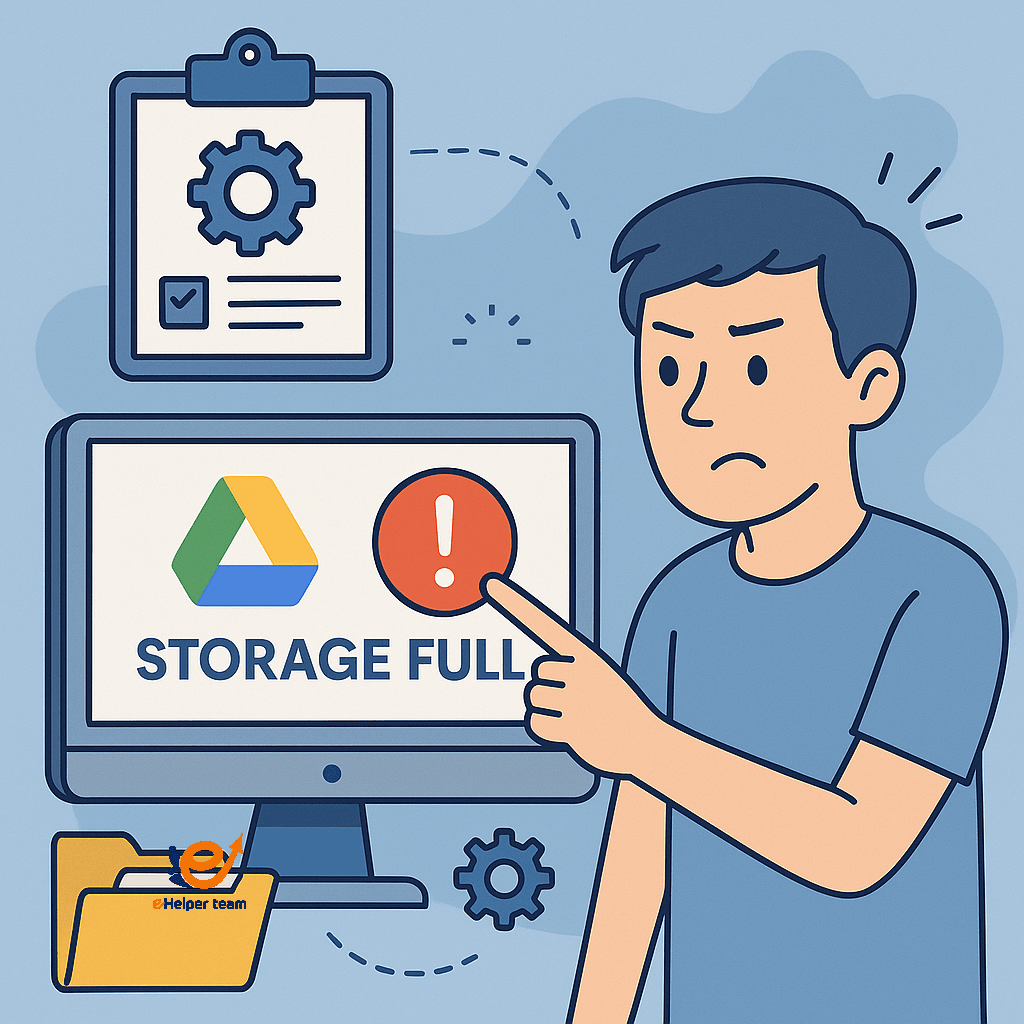
Have you received the “google drive storage full but it’s not” message, even though you’ve just deleted a bunch of files؟ It’s confusing—and frustrating. You empty your Trash، check your folders، and still get the same message. So، what’s causing this؟
What many users don’t realize is that Google Drive shares space across services like Gmail and Google Photos. Hidden backups، large email attachments، or even deleted content in Trash could still be taking up space. Add to that delayed sync or a possible google drive storage bug, and you’ve got a perfect storm for false alerts.
In this article we’ll walk you through every possible cause and how to resolve it. You’ll learn how to remove hidden files google drive, delete orphan files, clean up Google Photos، and even use smart tools—like this lightweight software guide for old PCs—to analyze storage issues. Let’s break down this error once and for all.


Understanding the google drive storage full but it’s not Message
This issue typically appears due to inconsistencies in Google’s storage data. Deleted files may still linger in Trash. Hidden or orphan files may be invisible in the main folders yet still consume space. Or sometimes it’s simply a delay in Google’s internal update processes.
In rare cases, the error may stem from a long-standing google drive storage bug, which causes incorrect storage reporting on the dashboard.
How Google Storage Is Shared Across Services
Google gives each user 15GB of free storage that is shared across:
Google Drive
Gmail
Google Photos
Even if you delete files in Drive, your Gmail attachments or Google Photos uploads may silently take up space. Visit the Google One storage manager to get a detailed breakdown.
How to Identify Hidden Files in Google Drive
Many users overlook hidden files google drive keeps behind the scenes—old application data, leftover sync files, or system backups.
To locate them:
Go to Google Drive
In the search bar enter: is:unorganized owner:me
Review the files and remove what’s no longer needed
Empty your Trash afterward
This step alone can free up several gigabytes of storage.
Deleting Orphan Files to Free Up Space
Orphan files are files that remain after a folder is deleted. They’re detached from any directory but still exist in your storage.
To find and delete them:
Use the same search command above
Select files you no longer need
Delete them
Clear your Trash again
This is one of the most common fixes for the google drive storage full but it’s not issue.
Clearing Google Photos Storage
clearing google photos storage is essential if you’re uploading high-resolution media. As of June 2021، all media uploaded in “Original” or “High Quality” counts toward your storage limit.
To clean it:
Visit photos.google.com/settings
Select “Manage storage”
Convert old photos to Storage Saver quality
Remove duplicates، blurry images، and large videos
Photos and videos are often the silent culprits behind inflated storage usage.
Emptying Trash and Removing App Backups
Many users forget that deleting a file doesn’t immediately free space. It remains in Trash for 30 days.
To clear space:
Go to the Trash section in Google Drive، Gmail، and Photos
Permanently delete the items
Review Google Account → Drive → Backups
Delete old device or app backups
This clears the residual storage data lingering on your account.
Troubleshooting Sync Issues
Sometimes a sync delay between your device and the cloud can misrepresent storage data.
To fix this:
Restart Google Drive for Desktop or Backup & Sync
Ensure all files are properly uploaded
Clear local cache or reinstall the app
Allow time for Google to update storage metrics
This is especially common after large file deletions.
Use Google One Storage Manager
Google One’s Storage Manager tool gives you a complete view of your usage:
Quickly see which files take the most space
Delete emails with large attachments
View all Trash folders in one place
It’s the fastest way to evaluate your actual usage and clean up junk.
Use Third‑Party Tools for Deep Cleaning
Want deeper insights؟ Tools like WinDirStat and TreeSize let you analyze storage at a folder-by-folder level، helping identify what’s bloating your cloud storage.
For an example of how software tools can help streamline performance، read this comparison between OBS vs Streamlabs. It shows how choosing the right tool can save time and space.
When to Contact Google Support
If none of these steps work، and your storage still reads full، contact Google Support.
Be sure to:
Take screenshots of your storage usage
Record steps you’ve taken to clear files
Reference hidden and orphan file searches
They may be able to reset your storage or manually clear system files.
Real‑World Case Study: Solving the Error
One user deleted 4GB worth of files but still received the storage-full message. After running a hidden file search، clearing Trash، and cleaning Google Photos، the problem persisted.
They restarted sync، allowed the account to refresh، and used Google One’s tools. Within 48 hours، Drive updated to reflect the correct storage and freed over 5.5GB of space.
Tips to Avoid Future Storage Errors
Keep your Drive clean by:
Running a monthly hidden file search
Deleting large emails in Gmail
Switching Google Photos to Storage Saver
Archiving large files offline
Proactive maintenance keeps your cloud clutter-free.
Cloud Storage Comparison Table
| Platform | Free Storage | Pros | Best For |
|---|---|---|---|
| Google Drive | 15 GB | Seamless with Google services | General users |
| Dropbox | 2 GB | Reliable sync, strong encryption | File version control |
| OneDrive | 5 GB | Integrated with Microsoft Office | Office productivity |
Also، if you deal with large media or game files، check this guide to cloud gaming services for tips on cloud storage efficiency.
Learn How Cloud Storage Actually Works
To understand how cloud infrastructure allocates and manages your storage in background processes، explore this guide on cloud storage architecture that breaks down global data infrastructure.
How Cached Data Can Confuse Your Storage Readings
Even when everything seems cleaned, local cache and metadata might still distort how storage usage appears. Here’s what to check beyond the obvious:
Browser cache buildup can create display mismatches, reinforcing the google drive storage full but it’s not warning.
Some orphan files and thumbnails might stay hidden due to how sync logs store temporary content.
Google Drive extensions or add-ons may interfere with real-time storage data—try disabling them temporarily.
Using Incognito mode often gives a clearer, unfiltered view of actual Drive space.
While these caches don’t affect true storage, they may contribute to perceived usage glitches.
When these steps fail, proceed with clearing google photos storage and checking Drive via Google One.
How Cached Data Can Confuse Your Storage Readings
Even when you’ve deleted files, cleared Trash, and removed backups, your account might still show full storage. That’s because local cache and display metadata can mislead you. Here’s how this affects the google drive storage full but it’s not problem:
Your browser cache may store outdated storage indicators; clearing it often resets visual errors.
Orphan files created by system logs or sync attempts can sometimes remain invisible until Drive is refreshed.
Drive extensions (especially auto-sync or backup tools) may interfere with real-time data reporting.
Try accessing your account through Incognito mode for a clean, unfiltered dashboard.
While these don’t consume actual space, they can distort your usage display, giving you false alerts.
To eliminate uncertainty, combine cache clearing with clearing google photos storage and rechecking Google One.
Frequently Asked Questions
1. Why does Google say my Drive is full when it’s not?
This happens due to hidden files، cached data، orphan files، or sync lags. They all can contribute to false readings.
2.How do I find orphan or hidden files?
Use the search command is:unorganized owner:me in Google Drive. Review and delete what’s not needed.
3.Will cleaning Google Photos help?
Yes. Switching to Storage Saver and removing large media can quickly free up space.
4.How long do files stay in Trash?
30 days. Until then، they still count toward your storage.
5.Can a sync error affect Drive storage reading?
Absolutely. Local file delays and unrefreshed cloud syncs can create inaccurate usage stats.
Conclusion
Fixing the google drive storage full but it’s not error takes patience—but it’s completely doable. From clearing hidden files google drive and orphan files, to managing Google Photos and resolving sync issues، this guide gives you everything you need to reclaim and maintain your storage space.
Don’t let a misleading message slow you down. Clean smart، use the tools shared today، and reclaim your Google Drive space—accurately and confidently.