Smart Ways to Clean Laptop Fan Without Opening and Fix Overheating Issues
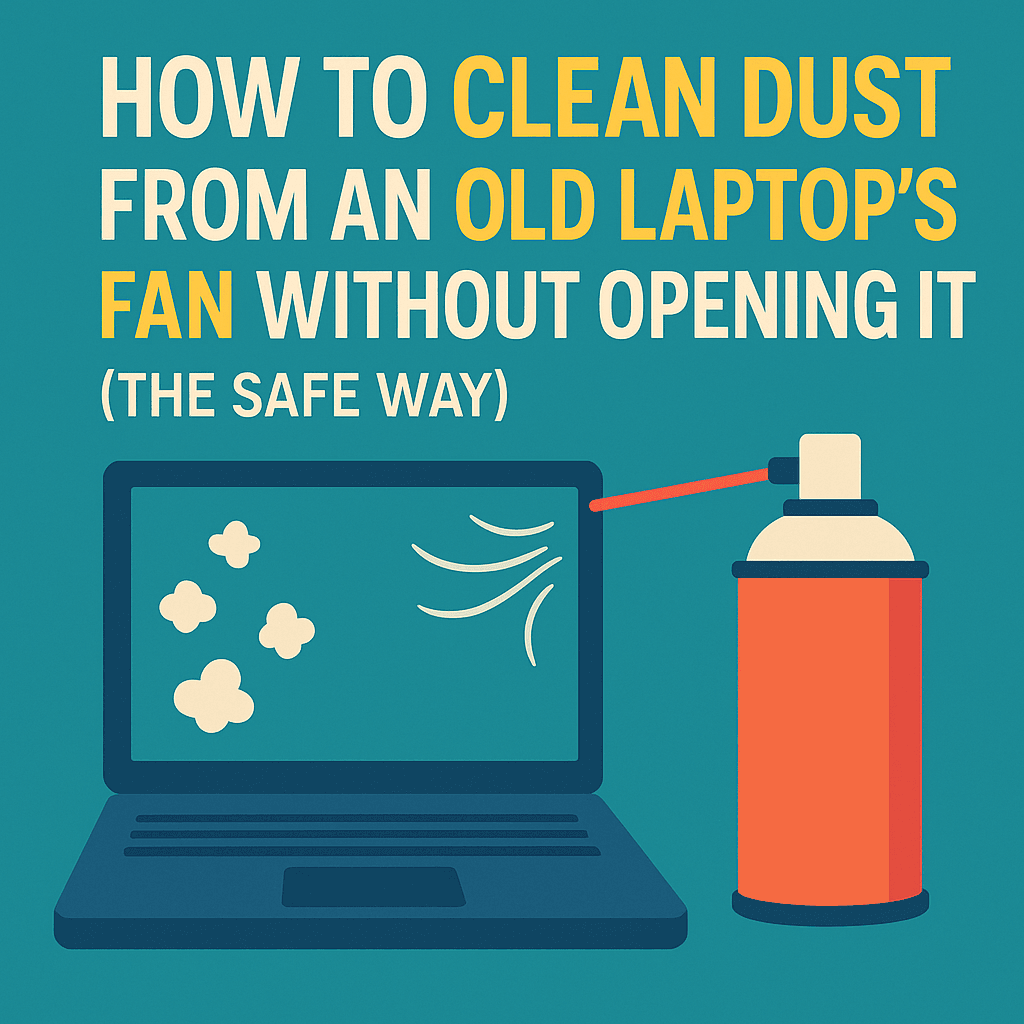
If you’re looking for a way to clean laptop fan without opening the device, you’re definitely not alone. If your old laptop is heating up or starting to sound like a jet engine, it’s probably due to internal dust buildup. Over time, laptops collect a surprising amount of debris through their vents—especially when used in environments with pets, carpets, or poor airflow, This dust accumulates in the cooling system, clogs the fan, and prevents proper heat dissipation.
The result? Loud fan noises, reduced performance, and even unexpected system shutdowns caused by overheating, But here’s the good news: there’s a safe, effective, and non-invasive way to fix this without disassembling your laptop.
Many users assume that repairing an overheating or noisy laptop means opening it up and risking further damage—but in fact, you can significantly improve airflow and reduce internal temperatures by learning how to clean laptop fan without opening it. With just a can of compressed air, a small vacuum, and a microfiber cloth, you can restore your system’s cooling power.
And if you really want to go the extra mile, consider upgrading to an SSD afterward to boost performance even further.


Why You Should Clean Laptop Fan Without Opening It
Risks of Opening a Laptop
Modern laptops are compact and complex inside. One wrong move can disconnect a ribbon cable, damage your battery, or void your warranty. If you’re not experienced in laptop disassembly, it’s easy to make a costly mistake.
That’s why it’s often safer to clean laptop fan without opening the device. It reduces the risk of hardware damage and doesn’t require any technical skills.
Benefits of External Cleaning
Safe for non-technical users.
Quick and inexpensive.
No tools or disassembly required.
Ideal for older laptops that are fragile inside.
Tools You Need for Safe External Cleaning
Compressed Air Cans
These cans expel pressurized air to dislodge dust particles inside your fan and exhaust systems.
Mini Vacuum Cleaners
Low-power vacuums designed for electronics can gently pull dust out of ventilation grills.
Microfiber Cloths & Cotton Swabs
Use these to clean the exterior vents, fan grills, and surrounding casing without causing static or scratches.
Step-by-Step Guide to Clean Laptop Fan Without Opening It
1. Turn Off and Unplug the Laptop
Safety first. Power down your laptop completely and unplug any external power or USB devices.
2. Use Compressed Air Properly
Blow short bursts of air into both intake and exhaust vents.
Hold the can upright to avoid releasing liquid propellant.
Tilt the laptop to allow loose dust to fall out.
3. Vacuuming Vents Safely
Use a small electronics vacuum to pull out the remaining dust. Don’t press the nozzle hard—just glide it near the vent openings.
4. Wipe Exterior and Airflow Ports
Dust buildup on the keyboard, hinges, and around vents can also restrict airflow. Use a microfiber cloth dampened (lightly) with alcohol-free cleaner.
Best Practices to Prevent Laptop Overheating
Proper Ventilation
Avoid soft surfaces like beds and cushions.
Use a laptop stand for better airflow.
Position it in a well-ventilated area.
Using Cooling Pads
Laptop cooling pads can drop internal temps by 5–10°C, helping reduce fan activity and extending your system’s life.
Cleaning Schedule Recommendations
Clean once every 2–3 months.
Weekly if you have pets or work in dusty rooms.
How to Reduce Fan Noise Without Disassembly
Positioning and Surface Matters
Ensure your laptop sits on a hard, flat surface. A riser or stand improves air intake and reduces how hard your fan needs to work.
Software Solutions to Reduce Load
Reduce unnecessary background processes using tools like:
Task Manager (Windows)
Activity Monitor (Mac)
Install tools like NoPing to improve gaming performance by reducing latency. Read how it helps.
Compressed Air for Laptop Maintenance
How It Works
The air pushes dust from tight spaces where brushes can’t reach. It’s fast, cheap, and widely available. Compressed air is commonly used in electronics maintenance for safe and effective cleaning.
Safety Tips for Usage
Keep the can upright.
Don’t over-saturate one spot.
Never insert the nozzle too deeply into vents.
Real Case Study A 5-Year-Old Laptop Revived Without Opening
A user with a 5-year-old Dell laptop saw:
Loud fan sounds
Heat that made the palm rest uncomfortable
Programs slowing down
They used only a can of compressed air, a vacuum, and a microfiber cloth. After 10 minutes of cleaning, the laptop ran cooler, quieter, and programs opened faster.
Alternatives and When Professional Help Is Needed
When Cleaning Isn’t Enough
If temperatures remain high after cleaning, or you still hear aggressive fan noise, it may be time to check for:
Malware
Failing internal parts
Dried-out thermal paste
Software Diagnostics Tools
Apps like HWMonitor, Speccy, or Core Temp show real-time CPU and GPU temperatures. Use them to confirm if cleaning made a difference.
Related PC Cleaning Tips You Should Know
Keeping your laptop clean isn’t just about dust—it’s also about improving performance and reducing stress on internal components. In addition to learning how to clean laptop fan without opening the device, follow these essential PC cleaning tips to get the best out of your system:
Uninstall unnecessary apps that consume system resources and make the fan work harder. Removing them can help free up memory and reduce fan noise.
Run a reliable anti-virus regularly to detect background threats. Malware can increase CPU load, leading to overheating and excessive fan activity.
Defragment your hard drive if you’re still using an HDD. This improves file access and reduces disk strain, which helps lower system heat.
Use cleanup tools like CCleaner to remove junk files. However, avoid frequent use of registry cleaners to maintain system stability.
Gently blow out dust from vents using compressed air on laptop surfaces. This lowers internal temperatures and reduces the need for the fan to spin aggressively.
Tools Comparison Table: Compressed Air vs Mini Vacuums
| Feature | Compressed Air | Mini Vacuum |
|---|---|---|
| Portability | High | Medium |
| Reusability | One-time use | Reusable |
| Cost | Low | Moderate |
| Ease of Use | Easy | Easy |
| Effectiveness | Great | Great |
Benefits of Cleaning Laptop Fan Without Opening
Cleaning your device regularly helps extend its lifespan and avoid performance drops. Here’s how cleaning laptop fan without opening makes a difference:
Prevents dust buildup that blocks airflow.
Reduces internal heat and prevents thermal damage.
Avoids thermal throttling and sudden shutdowns.
Keeps the fan quieter and more efficient.
Improves overall system speed without disassembly.

How This Relates to Performance Upgrades
Want more speed? Upgrading your hard drive to an SSD is one of the most cost-effective ways to revive old laptops.
Need better gaming response? Try NoPing Game Booster to cut lag and enhance your experience.
Concerned about online safety on an aging system? Check out Hide Expert VPN for secure browsing.
Frequently Asked Questions
Q: Can I damage my laptop using compressed air?
A: Not if you use it correctly—short bursts, upright position, and avoid shaking the can.
Q: How often should I clean my laptop fan?
A: Every 2 to 3 months, or monthly if you use it in a dusty environment.
Q: Is opening a laptop safe for beginners?
A: It’s risky. Unless you’re confident and experienced, stick to external cleaning.
Q: What are signs my laptop is overheating?
A: High fan noise, laggy performance, or the device shutting off randomly.
Q: Are cooling pads effective for old laptops?
A: Yes, they help improve airflow and reduce heat buildup.
Conclusion
You don’t need to open your laptop to fix overheating or noisy fans. By learning how to clean laptop fan without opening, you protect your device, extend its life, and maintain performance—all without risking internal damage. Combine cleaning with software tuning and external tools, and your old laptop will feel like new again.