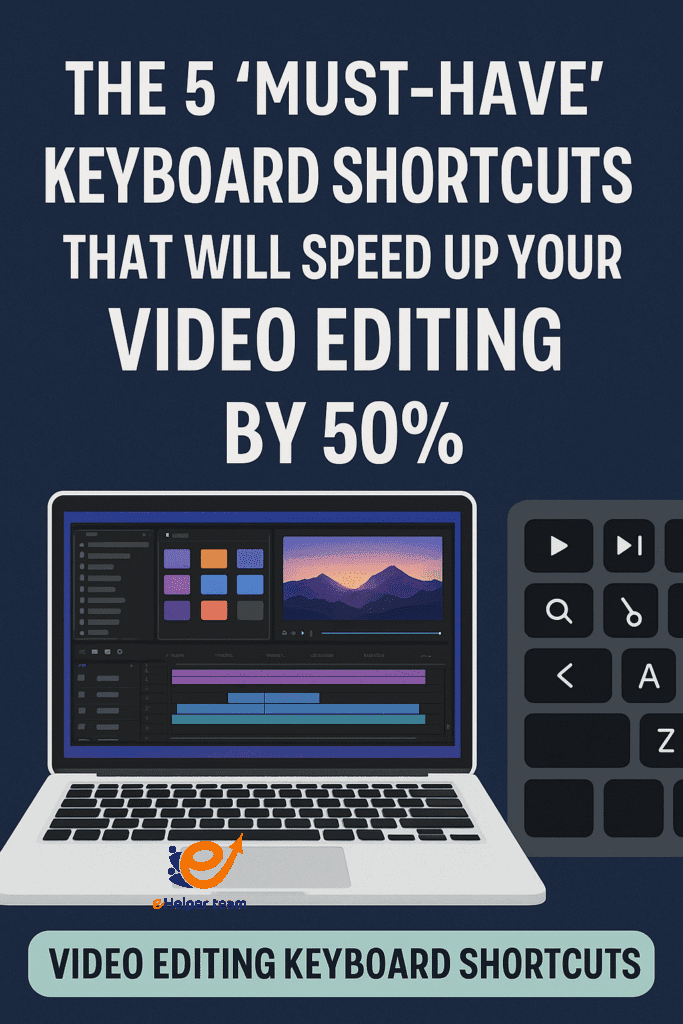
The 5 Must-Have Video Editing Keyboard Shortcuts to Boost Speed by 50%
Have you ever wondered why some video editors seem to glide through their projects while others take hours to complete the same task? The answer often lies in one simple skill — mastering video editing keyboard shortcuts. Thse time-saving combinations can drastically reduce the number of clicks and menu searches you perform, allowing you to focus more on creativity and less on repetitive actions.
Imagine cutting your editing time in half without upgrading your computer, buying expensive software, or sacrificing quality. Shortcuts like the blade tool, ripple delete, and timeline navigation are not just fancy tricks; they are essential tools for any editor who wants to work smarter. By learning the right ones for your preferred software, whether it’s DaVinci Resolve or Premiere Pro, you can create smoother workflows that keep you in the creative zone.
But here’s the real question: how much time could you save if you truly committed to using shortcuts every day? In this article, we’ll uncover five must-have commands that will transform your editing process. Whether you’re producing content for social media, documentaries, or YouTube, these tips will help you work faster, stay organized, and enjoy the editing process more than ever before.
Why Keyboard Shortcuts Matter for Video Editing
Keyboard shortcuts are more than just convenience—they’re the bridge between your ideas and execution. Every time you take your hand off the keyboard to reach for the mouse, you’re adding seconds to your workflow. Multiply that by hundreds of cuts, trims, and adjustments, and you’ll see why adopting shortcuts is crucial for efficiency.
Shortcut 1 – The Blade Tool Shortcut
The blade tool is one of the most frequently used features in editing software. In Premiere Pro, the default shortcut is C, while in DaVinci Resolve, it’s B. This simple command allows you to split a clip instantly without dragging the mouse to the toolbar.
When to use it effectively:
Cutting out mistakes or unnecessary segments
Dividing clips for transitions or effects
Isolating sections for color grading
Using this shortcut consistently will save hours over the course of long projects, especially in content-heavy edits.
Shortcut 2 – Ripple Delete
Ripple delete is a powerful tool for closing gaps between clips automatically. Instead of deleting a clip and then manually dragging the next one over, ripple delete combines those steps.
In Premiere Pro, it’s mapped to Shift + Delete, while in DaVinci Resolve, you can use Shift + Backspace.
Advantages of ripple delete:
Maintains perfect timeline flow
Prevents accidental empty frames
Keeps audio synced without manual adjustments
Shortcut 3 – Timeline Navigation Shortcuts
Timeline navigation shortcuts help you jump between edit points, zoom in and out, or move to the beginning or end of your project instantly.
Common examples:
Home / End: Move to start or end of the timeline
+ / –: Zoom in and out
Up / Down Arrow: Jump between cuts
These commands are essential in fast-paced editing environments where you can’t afford to waste time scrolling.
Shortcut 4 – Undo and Redo
While it may seem basic, undo (Ctrl + Z / Cmd + Z) and redo (Ctrl + Shift + Z / Cmd + Shift + Z) are the safety nets of your editing process.
The faster you can reverse a mistake or reapply a change, the more confidently you can experiment without worrying about ruining your work.
Shortcut 5 – Copy and Paste Attributes
Instead of manually replicating effects, transitions, or color corrections, you can copy attributes from one clip and paste them onto another.
In Premiere Pro, the commands are Ctrl + C / Cmd + C (copy) followed by Alt + Ctrl + V / Option + Cmd + V (paste attributes).
This is especially useful for batch applying LUTs, audio adjustments, or motion effects across multiple clips.
Optimizing Your Workflow Beyond Shortcuts
While shortcuts are a huge time saver, pairing them with other productivity techniques can further boost efficiency.
For instance, organizing your files and project bins effectively is just as important as knowing which key to press. Using cloud syncing tools like described in this Google Drive workflow guide can help you access and manage assets faster, whether you’re editing on one computer or multiple devices.
Additionally, understanding non-linear editing principles can help you take better advantage of your software’s capabilities without getting lost in technical menus .
Choosing the Right Shortcuts for Your Software
Not all editing programs use the same default keys. While DaVinci Resolve shortcuts and Premiere Pro shortcuts may share similarities, there are key differences worth noting.
Example Comparison Table:
| Function | Premiere Pro Shortcut | DaVinci Resolve Shortcut |
|---|---|---|
| Blade Tool | C | B |
| Ripple Delete | Shift + Delete | Shift + Backspace |
| Add Edit | Ctrl + K | Ctrl + B |
| Zoom In | + | + |
| Zoom Out | – | – |
Overloading memory: Trying to learn too many shortcuts at once can lead to confusion.
Neglecting customization: Many editors don’t realize they can remap keys for comfort.
Ignoring context menus: Some features are faster via right-click menus, so balance is key.
Advanced Keyboard Shortcuts for Power Users
Once you’ve mastered the five essential video editing keyboard shortcuts, you can start exploring advanced commands to supercharge your editing speed. These advanced techniques aren’t for beginners, but once learned, they can cut production times significantly.
1. Multi-Camera Editing Shortcuts
If you’re working with multiple camera angles, most professional editing software allows you to switch between them in real-time using numeric keys. For example:
1, 2, 3, 4: Switch between camera feeds instantly
Ctrl + 1 or Cmd + 1: Open specific camera view in source monitor
2. Marker Management
Markers are crucial for keeping track of important moments in a long project. Learn to:
M: Add a marker instantly
Shift + M: Jump to next marker
Ctrl + M / Cmd + M: Modify marker properties
3. Render & Export Shortcuts
In Premiere Pro, Ctrl + M / Cmd + M opens the export settings directly, allowing you to set your output without navigating through menus.
How to Customize Shortcuts in Your Editing Software
Customizing shortcuts allows you to design a workflow that feels natural. Here’s how to approach it:
Identify Repetitive Actions
Keep track of the actions you use most often for a week.Assign Comfortable Keys
Use keys near your dominant hand for faster access.Avoid Conflicts
Ensure new mappings don’t overwrite essential commands unless intentional.Back Up Your Shortcut Profile
Most software lets you export shortcut settings so you can use them across multiple devices.
Boosting Your Workflow with Macro Keys
For editors working on large-scale projects, investing in a keyboard with macro keys can be a game-changer. Macro keys allow you to assign multiple actions to a single button.
Example Macro:
Pressing a single key could:
Cut the clip
Move playhead forward 2 seconds
Add a fade transition
This is especially useful for repetitive edits like vlogs, gaming videos, or corporate training content.
Pairing Shortcuts with Editing Techniques
Shortcuts work best when combined with strong editing principles. For example:
J-Cut and L-Cut Techniques: Maintain audio continuity while changing visuals.
Color Grading First: Applying color corrections before heavy edits can save rendering time.
Batch Processing: Use copy/paste attributes to adjust multiple clips at once.
Troubleshooting Shortcut Issues
Sometimes shortcuts won’t work as expected. Common causes include:
Language/Keyboard Layout Settings: UK vs US keyboard layouts can shift key positions.
Software Updates: New versions may reset custom mappings.
Conflicting Background Apps: Some apps override hotkeys, especially screen recorders.
To fix these issues, regularly review your shortcut configuration and check release notes after software updates.
Integrating Shortcuts Into Your Daily Workflow
Consistency is key. If you use video editing keyboard shortcuts for only some tasks, you won’t maximize the benefits.
Integration tips:
Practice in smaller projects before moving to large ones.
Force yourself to use the shortcut instead of the mouse for repetitive actions.
Review and refine every month to remove unused commands.
Recommended Learning Path for Beginners
For someone just starting with shortcuts:
Learn the five essentials discussed in this guide.
Add three advanced shortcuts every two weeks.
Experiment with remapping to see what feels natural.
Use resources like tutorials, software manuals, and editing communities to keep learning.
Mastering shortcuts is just the start. Expanding your knowledge with tools, effects, and editing styles will make you an even stronger creator. Resources like this free apps guide for reels can introduce you to new platforms and techniques that complement your shortcut mastery.

FAQs
Q1: How many video editing keyboard shortcuts should I learn at first?
Start with five to seven essential commands. Once those feel natural, add more gradually.
Q2: Are shortcuts the same across all editing software?
No. While some are universal, most programs have their own default mappings.
Q3: Can I create custom shortcuts in my editor?
Yes. Most professional software allows you to remap keys to suit your preferences.
Q4: Will learning shortcuts improve my editing quality?
While shortcuts won’t improve creativity directly, they free up mental bandwidth for better creative decisions.
Q5: Where can I learn more about editing techniques?
Check out resources like Green Screen for Beginners for advanced production skills.
Conclusion
Mastering the right video editing keyboard shortcuts is more than just a way to save time — it’s a skill that transforms the way you create. By integrating essential commands like the blade tool shortcut, ripple delete, and timeline navigation into your daily workflow, you eliminate wasted seconds and keep your focus where it belongs: on storytelling and creativity.