What is Google Search Console ?
In the rapidly evolving digital world, mastering Google Search Console (GSC) has become an essential skill for anyone managing a website. Whether you’re a marketer, a small business owner, or a web developer, this free tool from Google offers invaluable insights into how your website performs in search results.
Simply put, Google Search Console is the command center for your website’s visibility. It helps you understand which queries drive traffic, how your pages appear in Google Search, and what technical issues may be holding you back. With the rollout of new updates in 2025—like enhanced Core Web Vitals and AI-powered search data—the tool is more powerful than ever.
For a deeper dive into verification methods and setting up your account, check this detailed guide on Google Search Console verification.
What Exactly Is Google Search Console and Why Does It Matter?
Google Search Console is a free web service developed by Google to help you monitor, maintain, and troubleshoot your site’s presence in Google Search results. Unlike Google Analytics, which focuses on user behavior within your site, GSC focuses on how Google views and indexes your content.


At its core, GSC provides crucial data such as:
Search performance metrics: impressions, clicks, and average position.
Indexing reports: which pages are indexed, excluded, or have errors.
Mobile usability data: ensuring your site meets mobile-first indexing standards.
Security and manual action alerts: notifying you about any potential issues.
Understanding this data allows you to optimize pages for visibility and resolve issues before they impact ranking. For instance, if your sitemap isn’t properly indexed, GSC immediately flags it—saving you from potential traffic loss.
For beginners, it’s often the first step in technical SEO. Many webmasters use it alongside analytics platforms for a 360-degree view of performance.
If you’re new to SEO, check the SEO basics for beginners guide to learn how GSC fits into your overall optimization workflow.
How to Set Up Google Search Console — Step-by-Step (2025 Edition)
Setting up Google Search Console is straightforward yet vital for collecting accurate data. Here’s the process:
Sign in to GSC: Go to search.google.com/search-console.
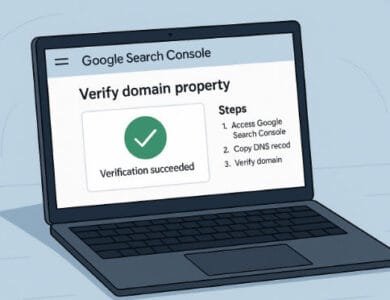
Add a property: You can choose between a Domain property (includes all subdomains) or a URL prefix (specific to one domain).
Verify ownership: Google offers several verification methods:
Uploading an HTML file to your website.
Adding a DNS record via your domain provider.
Using your Google Analytics or Google Tag Manager account.
Submit your sitemap: This tells Google which pages to crawl and index.
Monitor performance and coverage reports: Once verified, GSC begins collecting data within 48–72 hours.
In 2025, Google improved the onboarding flow, making property verification easier, especially through auto-verification with connected Google accounts.
Another powerful update this year is the Insights Integration. This feature combines data from Google Analytics and Search Console, giving you a comprehensive view of how people discover and engage with your content.
To better understand sitemap creation and submission, visit How to Create a sitemap — an essential step for any website owner.
Key Features of Google Search Console You Should Master in 2025
The 2025 version of Google Search Console brings several advanced tools and metrics. Let’s explore the most impactful features you should focus on:
1. Performance Report
Displays clicks, impressions, click-through rate (CTR), and average position for every page. You can analyze performance by country, device, and search type (web, image, or video).
2. Index Coverage Report
Shows how many pages Google successfully indexed and highlights errors such as “Crawled — currently not indexed.”
3. Experience Section
Introduced in late 2024, this combines Core Web Vitals, mobile usability, and HTTPS reports under one unified tab.
4. Enhancements Report
Helps track structured data like FAQ, Breadcrumbs, or Product Markup—crucial for rich results in Google Search.
5. Links Report
Lists all internal and external links. You can discover which sites link to you most often—a feature especially useful for link-building campaigns.
For further insights into backlinks and link tracking, you can explore Powerful SEO Insights for 2025

How to Use Google Search Console Data for SEO Optimization
Knowing how to interpret and act on the insights from Google Search Console separates average websites from high-performing ones. The data provided by GSC can transform your SEO strategy if used wisely. Here’s how to make the most of it:
1. Optimize for High-Impression, Low-Click Keywords
Go to the Performance Report and filter queries with many impressions but few clicks. These are golden opportunities. You can rewrite meta titles, add structured data, or improve snippet quality to increase your CTR (Click-Through Rate).
2. Track Mobile Usability and Core Web Vitals
GSC alerts you if your site doesn’t meet mobile standards or if your page speed is poor. By optimizing for these issues, you can improve both rankings and user satisfaction. According to Google’s 2025 ranking factors, UX and page experience weigh more heavily than ever before.
3. Identify and Fix Indexing Issues
Use the Coverage Report to detect pages with “Crawled – Not Indexed” or “Duplicate without user-selected canonical” errors. Fixing these ensures your valuable pages appear in search results.
4. Enhance Internal Linking
The Links Report inside Google Search Console allows you to see how pages connect. You can increase internal linking between high-authority and low-performing pages to improve crawl efficiency.
5. Monitor Rich Results and Structured Data
In the Enhancements Section, you can see how your structured data is performing. Implementing rich results like FAQs, reviews, or breadcrumbs increases search visibility.
To dive deeper into site speed testing, check this helpful article on Website Speed Test Tools in SEO, which complements GSC’s page experience metrics perfectly.

Common Issues Detected by Google Search Console and How to Fix Them
Even the best-managed websites face occasional problems. Fortunately, Google Search Console provides precise alerts to help you resolve them efficiently. Below are the most frequent issues and solutions:
1. Index Coverage Errors
These errors often stem from incorrect canonical tags, broken links, or disallowed pages in your robots.txt file. Check the “Coverage” report and review each flagged URL. Revalidate fixes after correcting them.
2. Mobile Usability Errors
Common mobile errors include small text, clickable elements too close together, or content wider than the screen. You can use the Mobile Usability Report in GSC to identify and resolve them quickly.
3. Core Web Vitals Failures
If your LCP (Largest Contentful Paint) or CLS (Cumulative Layout Shift) scores are poor, optimize images, use better caching, and remove unnecessary scripts. GSC’s Page Experience report provides step-by-step recommendations.
4. Security and Manual Actions
Occasionally, websites get hit by manual penalties for unnatural links or spammy practices. GSC notifies you in the Security & Manual Actions tab. Always review these warnings promptly and submit a reconsideration request after fixing issues.
5. Sitemap or Crawling Issues
If your sitemap isn’t being read, recheck its format (XML), ensure it’s accessible, and resubmit it through GSC. Also, confirm that important URLs aren’t accidentally marked as noindex.
In 2025, Google has improved its error classification with AI-powered diagnostics, helping you fix problems faster with guided explanations and recommendations.
Advanced Tips to Maximize Google Search Console for Business Growth
Once your website is running smoothly, it’s time to leverage Google Search Console for real growth. Here’s how professional SEO experts use it in 2025:
1. Segment Your Performance Data
Use filters to compare branded vs. non-branded keywords. This reveals how much organic awareness your brand is gaining.
2. Analyze Seasonal Trends
GSC’s 16-month data retention allows you to track performance over time. Compare seasonal performance and plan your content calendar accordingly.
3. Monitor International SEO
If your site targets multiple countries or languages, use the International Targeting Report to check hreflang tags and optimize content for different markets.
4. Track Video and Image Search Visibility
The updated GSC interface lets you analyze image and video search performance separately. This is crucial for e-commerce and content-heavy sites. For example, in visual-heavy industries, improving image alt text and schema markup can dramatically boost visibility.
You can learn more from image ranking strategies.
5. Combine GSC With Other Tools
Integrate it with Google Analytics and Google Data Studio to visualize performance across platforms. Businesses now use GSC data for ROI measurement, keyword strategy, and client reporting.
By following these strategies, you transform Google’s free tool into a professional-grade SEO powerhouse capable of supporting long-term digital success.

Frequently Asked Questions (FAQs) About Google Search Console
1. What is Google Search Console used for?
It’s a free tool that helps you monitor, maintain, and optimize your site’s presence in Google Search results. It provides data about performance, indexing, and errors.
2. How often should I check Google Search Console?
At least once a week. Regular monitoring ensures that you detect performance drops, crawl issues, or security problems early.
3. Is Google Search Console different from Google Analytics?
Yes. GSC tracks how your site appears in Google Search, while Analytics measures what users do after they arrive on your site.
4. Can I see what keywords people use to find my site?
Absolutely. The “Performance” report shows search queries, impressions, and clicks—helping you identify which terms bring the most traffic.
5. How do I add a new website to Google Search Console?
Click “Add Property,” choose between Domain or URL prefix, and verify ownership via DNS, HTML file, or other methods.
6. What’s the difference between indexed and non-indexed pages?
Indexed pages appear in Google Search; non-indexed ones don’t. GSC helps you identify why certain pages weren’t indexed.
7. How can I fix Core Web Vitals issues?
Improve page loading time, reduce layout shifts, and optimize visuals. GSC’s Page Experience report provides real-time metrics.
8. Does Google Search Console support video and image SEO?
Yes. It provides separate reports for video and image search, allowing better optimization for visual content.
9. How can GSC help in local SEO?
By tracking local impressions, monitoring location-based queries, and verifying your business’s structured data.
10. Is Google Search Console free for everyone?
Yes. It’s a completely free tool provided by Google to help webmasters, businesses, and developers understand their site’s performance.
Conclusion
In 2025, Google Search Console is no longer just an optional SEO tool — it’s an essential foundation for online success. From performance tracking to technical troubleshooting and growth analytics, it equips webmasters with everything they need to dominate search visibility.
By learning how to read its data and implement changes strategically, you gain full control over your site’s performance and can respond proactively to algorithm updates. Whether you run a blog, an eCommerce site, or a corporate portal, integrating GSC into your daily workflow ensures you stay ahead of your competitors.