CapCut Tutorial for TikTok: Master Free Editing with This Easy 2025 Guide
Have you ever scrolled through TikTok and wondered how some creators make such polished, engaging videos—without spending hours learning editing software? If you’re over 35 and new to content creation, it can feel like you’re playing catch-up in a world dominated by flashy edits and quick transitions.
capcut tutorial for tiktok , TikTok’s official editing partner, is here to bridge that gap, This free video editing app simplifies the creative process, giving users access to pro-level tools without needing a background in video production. It’s intuitive, powerful, and built specifically for short-form video platforms like TikTok.
Whether you’re looking to promote your business, showcase a hobby, or simply keep up with your kids’ tech-savvy ways, CapCut makes video editing accessible and fun. And the best part? You can use it all without spending a dime. Plus, it fits perfectly into smart marketing strategies—like those that use AdMob for content monetization.



Getting Started: CapCut Tutorial for TikTok
1.Downloading and Installing CapCut
CapCut is available on iOS and Android devices and can also be accessed via browser or desktop version. Simply search for “CapCut” in the App Store or Google Play, download, and install.
2.Navigating the Home Interface
Upon opening CapCut, you’ll see a simple interface featuring:
New Project to begin editing
Templates for plug-and-play video creation
Drafts to continue past projects
The layout is user-friendly with clearly labeled options, perfect for beginners.
3.Importing Your TikTok Clips
Tap “New Project,” then select videos from your gallery. CapCut allows multi-clip selection, so you can piece together a story quickly. Once added, you’ll enter the timeline where editing magic begins.
How to Use CapCut Like a Pro Without Prior Editing Experience
1.Cutting, Trimming, and Merging Clips
CapCut’s timeline lets you trim unnecessary parts with just a drag of your finger. Use “Split” to break a long video into sections or “Delete” to remove bloopers.
2.Adjusting Video Speed and Volume
Tap on any clip
Select Speed to create slow-mo or time-lapse effects
Use Volume to mute background noise or amplify dialogue
3.Adding and Customizing Music
Choose from CapCut’s royalty-free music or upload your own audio. Aligning music with cuts adds rhythm to your video—a vital aspect of TikTok content.
Auto Captions in CapCut: Enhance Accessibility & Engagement
1.Enabling Auto-Captions
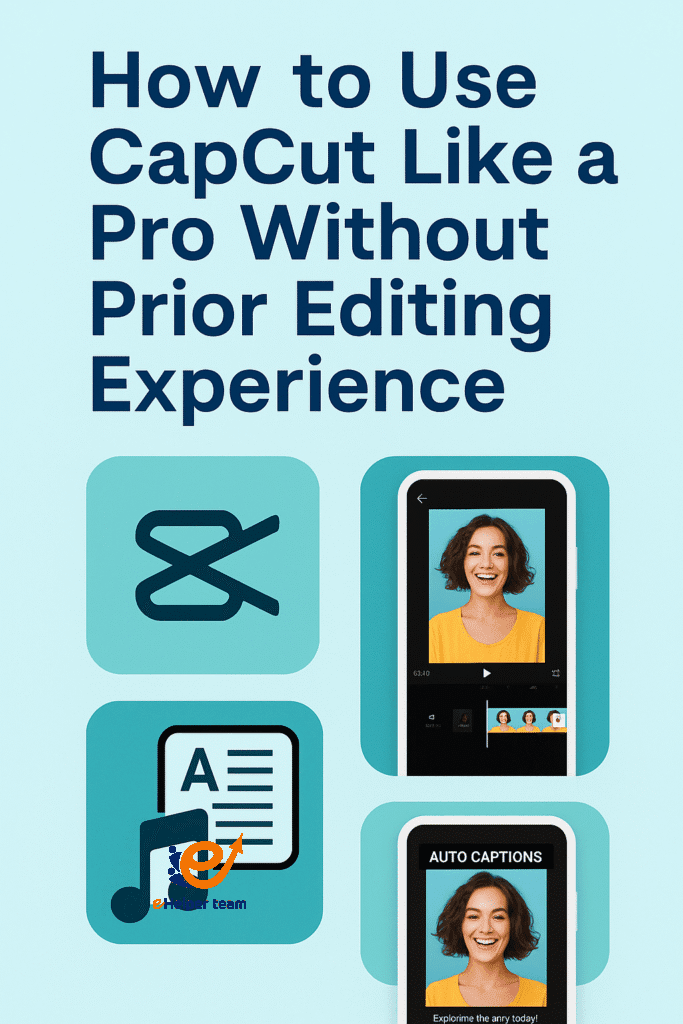
From the main editing screen, go to Text > Auto Captions. CapCut automatically transcribes spoken words in your video, saving tons of time.
2.Customizing Caption Styles
Change font, size, and color to match your brand aesthetic. You can even animate text to appear dynamically with your voice.
Exploring Transitions: Make Your TikTok Videos Flow Seamlessly
Adding Transition Effects Between Clips
Click the white box between clips to choose transitions like “Slide,” “Glitch,” or “Fade.” These make scene changes feel smooth and cinematic.
Using Advanced Motion Effects
Experiment with 3D zooms, spins, or camera shakes. These effects add flair without requiring manual keyframes.
Mastering the Green Screen Effect in CapCut
Removing Backgrounds for TikTok Reels
Use the Chroma Key tool under “Overlay” to replace your video background. It’s ideal for explainer videos, storytelling, or reaction content.
Adding Custom Backgrounds and Visual FX
Upload a new background image or video and apply animated overlays to make your video pop. This feature is a favorite among TikTok creators for memes and tutorials.
Popular CapCut Templates for TikTok: Where to Find and How to Use Them
Accessing the Template Library
Go to the Templates tab on the home screen. Here, you’ll find trending formats used by creators around the world.
Applying a Template to Your Video
Choose a template, tap “Use Template,” and import your clips. CapCut does the rest—timing transitions, adding effects, and inserting music.
How to Export and Upload Directly to TikTok
Choosing the Right Resolution and Frame Rate
Stick with 1080p at 30fps for the best TikTok performance. CapCut allows easy resolution adjustments before export.
Best Practices for Captions and Hashtags
Before exporting, add final touches like captions and hashtags. Keep it relevant, engaging, and concise to boost reach.
Advanced Editing Tips for 2025 TikTok Trends
Syncing Audio to Transitions
CapCut’s beat markers help you time visuals to music—crucial for trending dance videos and challenges.
Creating Effects with Precision Cuts
Use frame-by-frame playback to slice clips exactly where needed. It creates clean cuts for polished video effects.
Avoiding Common Mistakes Beginners Make in CapCut
Overusing Effects
Less is more. Avoid cluttering your video with too many effects. Stick to 1–2 consistent styles.
Skipping the Sound Sync
Align transitions with beat drops for better audience retention.
How CapCut Fits Into Your Marketing Plan
Boosting Reach with Engaging Video Content
Whether you’re promoting products, building a personal brand, or growing a community, CapCut provides the tools needed to stand out on TikTok.
Using CapCut with AdMob Strategies
Pair CapCut video content with AdMob monetization strategies to generate income while growing an audience.
Repurposing TikTok Videos to Instagram Reels, Shorts & More
CapCut supports multiple formats, making it ideal for content repurposing. Learn more in this cross-platform guide.
What’s the Best TikTok Video Length in 2025?
Want your videos to perform better? Based on recent data, videos between 21-34 seconds retain the highest viewer engagement. CapCut makes trimming and optimizing your content easy.
CapCut Cloud Projects: Edit Anywhere, Anytime
One of CapCut’s newest and most powerful features is its cloud project sync, which allows you to start editing on one device and finish on another without losing progress. This is ideal for busy adults managing content on the go.
Start editing on your phone during your commute
Pick up where you left off on your laptop or tablet
Projects are saved in the cloud and sync automatically
This seamless multi-device experience means you never have to worry about file transfers or missing drafts again.
Voice Effects and Audio Enhancements: Add Personality to Your TikToks
CapCut isn’t just about visuals. Its audio editing tools are surprisingly robust for a free app.
Voice Effects
You can alter your recorded voice with fun presets like:
Robot
Deep
Helium
Echo
This is perfect for creating funny content, storytelling, or adding dramatic flair to simple messages.
Noise Reduction
Record in less-than-ideal conditions? CapCut’s noise reduction filter helps clean up background noise, improving the clarity of your voiceovers or dialogue automatically.
Working with Text-to-Speech and AI Voiceovers
CapCut includes text-to-speech (TTS) functionality that lets you convert any written caption into a spoken voiceover using AI-generated voices.
Choose from various languages and tones
Ideal for tutorial, educational, and motivational content
Saves time when you don’t want to record your own voice
Combined with auto captions, this feature boosts accessibility and audience reach.
CapCut’s Built-in Stock Library: No More Searching for Media
If you need background videos, royalty-free soundtracks, or high-quality stickers, CapCut has you covered.
Use stock video clips for transitions or storytelling
Add GIFs, emojis, and animated stickers
Search and filter through trending sounds and assets
This built-in library reduces reliance on external resources, helping you complete a video faster.
Create Video Series with CapCut’s Folder Organization
As your video content grows, organization becomes key. CapCut offers folder-based management tools:
Group related projects by campaign or theme
Archive completed TikToks for future reference
Clone folders when starting a new series
This is especially useful for brands and creators running ongoing TikTok series or educational video sets.
Keyboard Shortcuts for Desktop Editors
For those using CapCut on desktop, mastering a few keyboard shortcuts can dramatically speed up your workflow:
Ctrl + B: Split clip
Ctrl + Z: Undo
Ctrl + E: Export
Spacebar: Play/pause timeline
These time-saving tips are ideal for creators who produce in volume or work under deadlines.
CapCut Analytics Preview: Smart Editing Based on Trends
CapCut now includes basic analytics and engagement data, giving you a sneak peek at how your video might perform before posting:
View predicted engagement based on timing, length, and sound choices
Optimize export settings for each platform
Adjust thumbnails and intros to improve watch time
Though not a full analytics tool, this feature guides smarter editing decisions that align with platform trends.
Frequently Asked Questions (FAQ)
Q1: Is CapCut free to use for TikTok?
Yes, CapCut is completely free with no hidden charges. All essential editing tools are available without a subscription.
Q2: Can I use CapCut on desktop?
Yes, CapCut offers a desktop version compatible with Windows and macOS, as well as a browser-based editor.
Q3: What’s the best CapCut setting for HD videos?
Use 1080p resolution with 30fps for optimal quality and smooth performance on TikTok.
Q4: How do I fix lag while editing on CapCut?
Close background apps, reduce preview quality, and clear cache regularly. CapCut also allows hardware acceleration in settings.
Q5: Does CapCut support 4K exports?
Yes, but 4K is usually unnecessary for TikTok. Stick to 1080p unless creating multi-platform content.
Final Thoughts: Embrace the Simplicity of TikTok Editing with CapCut
If you’ve been hesitant to dive into TikTok because editing seemed too complicated, capcut tutorial for tiktok is your gateway to effortless, impactful content creation. Whether you’re making your first video or scaling your personal brand, this tool provides everything you need—no editing experience required.
By mastering even the basics through this CapCut tutorial for TikTok, you’ll be able to produce compelling content that resonates with audiences across generations. Dive in, explore, and don’t be afraid to experiment. The creative world is just a few taps away.