How to Build a Simple Free Portfolio Website for Freelancers Using Canva or Google Sites
A free portfolio website for freelancers is no longer optional—it’s a necessity. Whether you’re a graphic designer, content writer, virtual assistant, or coach, having a personal online space to showcase your work is what separates professionals from the crowd. But what if you could create this digital portfolio without spending a penny or hiring a developer?
Today, tools like Canva websites and Google Sites portfolio templates make it possible to create a sleek, effective portfolio site in under an hour—even if you’ve never built a website before. You’ll find drag-and-drop interfaces, built-in hosting, and professional designs all for free.
Want to know the best part? You don’t need technical skills or a design background. Just a bit of guidance (this article provides exactly that), a few pieces of your best work, and a willingness to launch. And according to this guide, once you’re live, there are plenty of free strategies to bring traffic straight to your site.
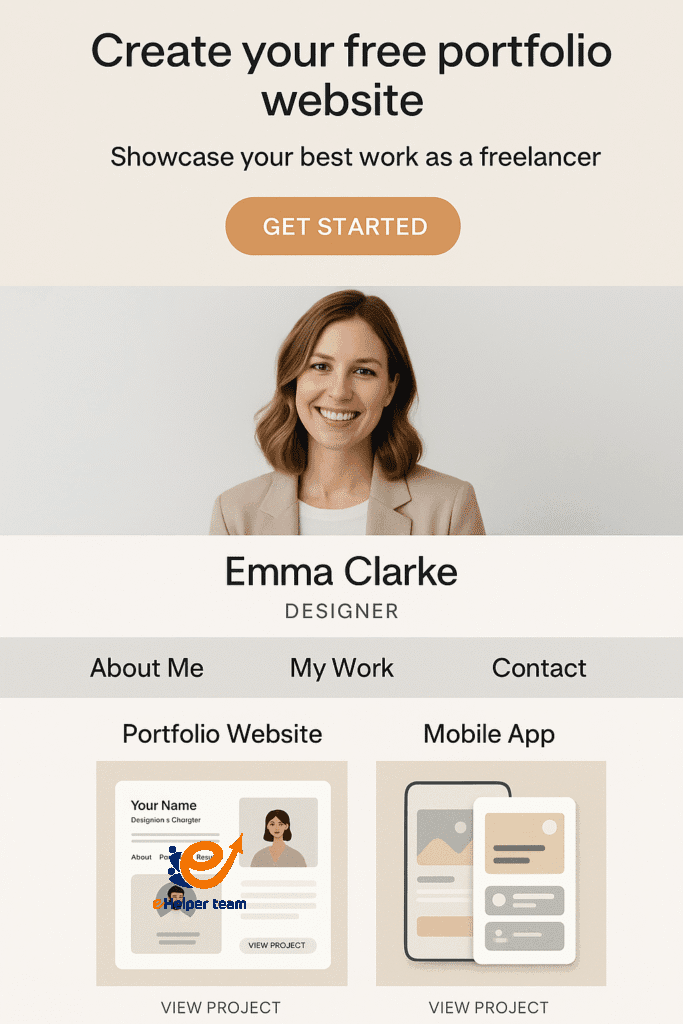


What Makes a Portfolio Essential in 2025
Your online portfolio is your first impression. In an increasingly digital economy, potential clients expect to see your previous work, testimonials, and contact information—all in one place.
Meet the Tools: Canva and Google Sites
Both tools are user-friendly, cost nothing, and allow you to create a visually appealing online space. Whether you want a polished one-page site or a full multi-section portfolio, Canva and Google Sites have you covered.
Step 1: Choosing the Right Platform
Canva vs Google Sites: A Quick Comparison
| Feature | Canva | Google Sites |
|---|---|---|
| Ease of Use | Very intuitive | Simple and straightforward |
| Customization | High (visual focus) | Medium |
| Integration | Canva assets | Google Workspace |
| Best For | Visual creators | Consultants, educators |
Which is Best for Freelancers 35+?
If you’re visually driven, Canva offers greater aesthetic flexibility. Google Sites is ideal if you’re looking for seamless integration with Google tools.
Step 2: Setting Up Your Canva Website
How to Start with Canva Websites
Visit Canva.com and sign in or register
Search “website” in the template library
Choose a layout and customize it
Add sections for your services, portfolio, and contact
Publish with Canva’s free domain or your own
Templates That Work for Freelancers
Minimalist design
Large image headers
Contact form section
Project galleries
Step 3: Building a Google Sites Portfolio
Getting Started with Google Sites
Go to Google Sites
Start a new blank site or use a pre-made template
Add pages for your about, portfolio, and contact details
Drag and drop images and text as needed
Publish and set sharing permissions
Customization Options Explained
Google Sites may not offer advanced visual design, but it’s incredibly functional and easy to manage—perfect for content-focused freelancers.
Step 4: What to Include in Your Portfolio
Showcasing Work: Images, Case Studies, Testimonials
At minimum, your portfolio should include:
2–3 samples of your best work
Short descriptions or case studies
Testimonials from past clients
Contact Info and Call-to-Actions
Always include:
A clickable email address or form
Links to social media
A direct call to action like “Book a Consultation”
Step 5: Branding Your Portfolio for a Professional Look
Choosing the Right Colors and Fonts
Stick to a maximum of two colors and one or two fonts. Keep it clean and consistent.
Adding a Personal Logo
A simple logo—even just your name in a stylized font—adds professionalism.
Step 6: Linking Your Portfolio Across the Web
Where to Share Your Website for Maximum Visibility
Once your free portfolio website for freelancers is live:
Add it to your LinkedIn profile
Use it in your email signature
Share it in freelance job applications
Submit it to professional directories
Social Media, Email Signatures, and Directories
All these are low-effort but high-impact distribution points. Learn how to go deeper with these organic traffic secrets.
Step 7: Measuring Performance and Getting Better
How to Track Traffic and Engagement
Use Google Analytics or similar tools to monitor:
Visitor count
Bounce rate
Pages visited
Conversion rates
For a complete breakdown, check this guide on measuring website traffic.
Common Mistakes to Avoid
Overcomplicating the Design
Don’t overwhelm your visitors with too many pages or effects.
Forgetting to Make It Mobile-Friendly
Always preview your site on mobile before publishing. Most users browse from phones.
Real-World Case Study: Sarah’s Success
Sarah, a 42-year-old consultant in the UK, built a Google Sites portfolio in under two hours. She uploaded three sample projects and added testimonials. After sharing it on LinkedIn, she booked three new clients in her first month.
How to Increase Portfolio Website Traffic for Free
Use SEO keywords related to your service
Post regularly on LinkedIn and Twitter
Share on job boards
List in directories like Behance or Dribbble
Try a traffic exchange site
Learn more in this article: What is a website traffic exchange service?
Who Should NOT Use Free Portfolio Platforms
While Canva and Google Sites are excellent for most freelancers, they may not suit every use case. These platforms are not ideal if:
You run a small agency with complex site architecture
You require advanced SEO customization or third-party integrations
You need full control over backend code and server settings
You expect very high traffic and need scalable performance
In such cases, consider alternatives like WordPress, Webflow, or even custom development.
How Clients Actually Judge Your Portfolio
Studies show that clients typically spend only 15–30 seconds scanning a freelancer’s website before deciding to stay or move on. What does that mean for you?
Make your above-the-fold section count by ensuring:
A short, clear headline that says what you do
One great visual or result-based example
A simple, visible contact button or link
Your portfolio needs to speak for you—fast and effectively.
How to Add Google Analytics to Your Site
Tracking visitor behavior helps you improve performance over time. Here’s how to install Google Analytics:
Google Sites: Go to “Settings” → “Analytics” → Enter your GA4 Measurement ID.
Canva Websites: Connect a custom domain using a registrar like GoDaddy, then embed your analytics code using an HTML widget (Pro plan required).
With analytics in place, you’ll know exactly who’s visiting, what they’re viewing, and how they found you.
Mobile-First Design Tips
Since the majority of traffic comes from mobile, your site must perform flawlessly on smaller screens. Follow these tips:
Use font sizes of at least 16px
Avoid long paragraphs and use short line spacing
Make sure buttons are easy to tap (not too close together)
Avoid using side-scroll sections or elements that break on mobile
Test your website on multiple devices before publishing
What Happens After You Launch?
Publishing your free portfolio website for freelancers is only step one. Here’s what to do next:
Share it with previous clients and ask for feedback
Create a LinkedIn post or Twitter thread showing a featured project
Join freelancer communities and add the site to your profile
Link it in proposals, your resume, and email signatures
Remember: every view of your portfolio is a possible lead. Promote it with pride and consistency.
FAQs
Q1: Can I use Canva or Google Sites without paying?
Yes, both platforms offer free versions with enough features to build a portfolio.
Q2: How long does it take to build a portfolio website?
Most users complete it in under two hours.
Q3: What sections should a freelancer portfolio have?
Your work, about, testimonials, and a contact section.
Q4: How do I increase visibility for my portfolio site?
Share it across your professional network, use SEO, and submit it to directories.
Q5: Are these platforms mobile-responsive?
Yes, both Canva and Google Sites optimize your site for mobile automatically.
Conclusion
Building a free portfolio website for freelancers has never been easier. With tools like Canva and Google Sites, you can create a polished and professional site in just a few hours. Follow the steps above, avoid common mistakes, and share your portfolio confidently.
Start now and let your work speak for itself. Your next client might be just a click away.