Contact Form 7 for WordPress – Here’s all about
When it comes to WordPress communication plugins, Contact Form 7 remains the ultimate choice for millions of site owners worldwide. It’s free, lightweight, and incredibly flexible — making it an essential tool for anyone who wants to build interactive, user-friendly forms without any coding knowledge.
Created by Takayuki Miyoshi, Contact Form 7 has become one of the most downloaded WordPress plugins of all time, helping website owners collect feedback, leads, and customer inquiries effortlessly.
Beyond functionality, having an optimized contact form can also boost your site’s visibility on search engines. For example, integrating your contact page into your website’s structure and properly create a sitemap ensures that search engines can index it effectively, improving your website’s overall SEO health.
As we move into 2025, this guide explores everything you need to know about Contact Form 7 — from setup and customization to integrations, multilingual support, and performance optimization.


How to Install and Set Up Contact Form 7
Installing Contact Form 7 is one of the easiest processes in WordPress. Just follow these steps:
Log in to your WordPress Dashboard.
Go to Plugins → Add New.
In the search bar, type “Contact Form 7”.
Click Install Now, then Activate.
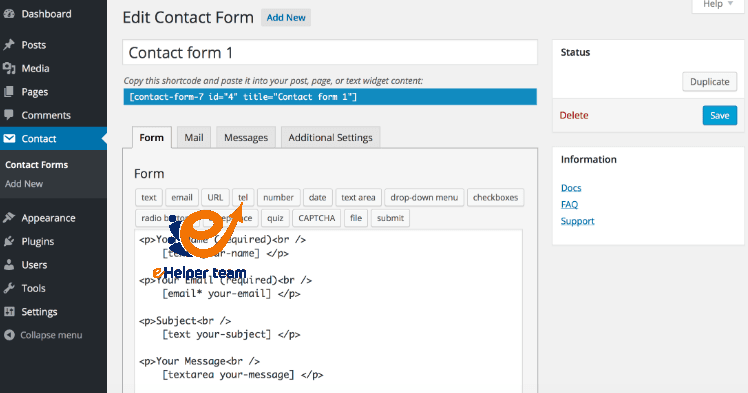
Once activated, you’ll find a new “Contact” tab in your dashboard menu. By default, the plugin comes with a ready-made contact form that includes fields for Name, Email, Subject, and Message.
You can simply copy the shortcode (e.g.,
If your website targets multiple regions or languages, consider combining Contact Form 7 with strong multilingual SEO strategies. This ensures your contact forms are available to global users in their preferred language, which enhances engagement and conversion rates.
After activating the plugin, always send a test message to verify that your email delivery settings are working correctly. If not, configure your site’s mail with SMTP to prevent message delivery failures.
Customizing Contact Form 7 for a Perfect User Experience
Customization is where Contact Form 7 truly shines. You’re not stuck with a generic form — you can design one that perfectly matches your brand’s identity and functionality needs.
- Form Layout and Fields
You can add or remove form fields easily using the built-in editor. Contact Form 7 supports various input types like text, email, checkbox, dropdown, radio buttons, and even file uploads.
For example, a business might include a “Subject” dropdown with pre-defined topics (like Sales Inquiry, Support, or Partnership), which helps route inquiries more efficiently.
- Styling and Visual Design
You can style your forms directly through your theme’s CSS or additional custom styles. Common adjustments include:
Changing button colors and sizes
Adjusting padding and margins for better spacing
Modifying input field borders and background colors
Adding modern styling creates a better user experience and makes your contact form visually appealing. You can even use online content writing tools to craft engaging and professional form descriptions or call-to-action messages that encourage users to fill out the form.
Smart Form Techniques
To enhance usability:
Use placeholders for a clean layout.
Add required fields for essential information.
Apply conditional logic using compatible add-ons to show or hide certain fields based on user input.
Best Practice: Keep your form simple — fewer fields lead to higher submission rates. Avoid unnecessary questions to maintain a smooth user experience.
Extending Contact Form 7 with Add-ons and Integrations
While Contact Form 7 is powerful by default, it becomes even more versatile when combined with other tools and plugins.
Here are some popular extensions that enhance its functionality:
Flamingo: Saves form submissions in your WordPress database, ensuring no message is lost.
reCAPTCHA v3: Integrates Google’s spam protection to secure your forms.
Mailchimp for Contact Form 7: Automatically adds form data to your mailing list.
Dynamic Text Extension: Pre-fills form fields using user or page data.
WPML Compatibility: Perfect for building multilingual forms for international audiences.
You can also connect Contact Form 7 to automation platforms like Zapier, allowing you to send submissions directly to your CRM, Slack, or project management tools.
Pairing it with analytics tracking through Google Tag Manager helps you measure form conversion performance — a crucial aspect of improving your overall marketing funnel.
With its open-source flexibility, Contact Form 7 remains one of the most adaptable WordPress plugins ever built. Whether you’re managing a small blog or a corporate website, it can scale effortlessly to meet your growing needs.
Troubleshooting Common Contact Form 7 Issues
Even though Contact Form 7 is one of the most reliable WordPress plugins, users sometimes face issues like emails not being delivered, forms not submitting, or CAPTCHA errors. Let’s look at the most common problems and how to fix them efficiently.
1. Emails Not Sending
One of the most frequent issues with Contact Form 7 is when form submissions don’t arrive in your inbox. This usually happens due to incorrect mail configuration or hosting restrictions.
Fix:
Install an SMTP plugin like WP Mail SMTP and connect it to a reliable mail server (e.g., Gmail or SendGrid).
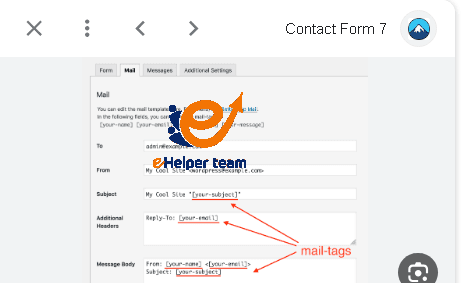
Ensure the “From” address in your form’s Mail tab matches your domain email.
Test your form after every change to confirm delivery.
2. “There was an error trying to send your message.”
This message often appears because of JavaScript conflicts or caching issues.
Fix:
Temporarily disable other plugins to identify conflicts.
Clear your WordPress and browser caches.
If you’re using a security plugin, ensure it doesn’t block AJAX submissions.
3. reCAPTCHA Errors
If you’re using reCAPTCHA and it’s not working, it’s usually due to an outdated API key or theme conflict.
Fix:
Generate new site and secret keys from your Google reCAPTCHA account.
Make sure you’re using reCAPTCHA v3, the most stable version for Contact Form 7.
4. Form Styling Doesn’t Match the Website
Sometimes your form looks out of place compared to your website’s design.
Fix:
Apply CSS overrides in your theme’s Additional CSS panel.
For better design harmony, ensure your site layout is properly optimized — you can learn how to do this through guides like creating a sitemap and other structural improvements.
Pro Tip: Before updating your WordPress version or plugins, always back up your site to prevent losing form data.
Security and Performance Optimization
Security and speed go hand in hand. As one of the most popular WordPress plugins, Contact Form 7 can attract spam bots or malicious scripts if left unprotected. Here’s how to keep your forms safe and fast.
Security Enhancements
Enable CAPTCHA: Always integrate Google reCAPTCHA v3 to filter out spam bots.
Use Honeypot Techniques: Invisible honeypots catch spam submissions without bothering real users.
Restrict File Uploads: Limit file types (e.g., .jpg, .pdf) and maximum size to avoid malware uploads.
Regularly Update: Keep both WordPress and the plugin updated to the latest versions.
Performance Optimization
Minimize Scripts: Use caching plugins like LiteSpeed Cache or WP Rocket to improve load times.
Optimize Forms for Mobile: Responsive forms improve user experience and SEO ranking.
Lazy Load Contact Forms: Display forms only when users scroll to them to enhance performance.
For advanced SEO results, combine Contact Form 7 with your broader optimization strategy — such as using multilingual SEO techniques or improving content structure for global reach.
Best Practices to Boost Form Conversions
Creating a functional form is one thing — optimizing it to convert is another. To turn your contact forms into lead-generation machines, follow these proven tips:
1. Keep It Simple
Only include necessary fields. Studies show that forms with fewer than five fields have the highest completion rates.
2. Clear and Compelling CTAs
Replace “Submit” with stronger calls to action like “Get Started,” “Contact Us Today,” or “Request a Free Quote.”
3. Add Social Proof
Displaying testimonials, reviews, or trust badges near your contact form boosts user confidence and increases submission rates.
4. Test and Optimize
Use A/B testing tools to experiment with different form layouts and headlines. You can even enhance your content using online content writing tools to craft powerful CTAs that resonate with your audience.
5. Track Form Performance
Integrate Google Analytics or Tag Manager to monitor how many users open and submit the form. Analyze the data to identify drop-offs and improve engagement.
Frequently Asked Questions (FAQs)
1. What is Contact Form 7 used for?
It’s a free WordPress plugin that lets you create and manage multiple contact forms effortlessly, allowing visitors to send inquiries directly from your site.
2. Can I add custom fields to my forms?
Yes, Contact Form 7 supports various field types — from text and dropdowns to checkboxes and file uploads.
3. How do I stop spam messages?
Integrate reCAPTCHA v3 and Honeypot protection to automatically block bots.
4. Is Contact Form 7 mobile-friendly?
Absolutely! All forms are responsive and adapt seamlessly to different devices.
5. Can I connect Contact Form 7 to email marketing tools?
Yes, you can integrate it with Mailchimp or other email services using add-ons.
6. Why aren’t my emails being delivered?
Check your SMTP configuration and ensure your “From” address matches your domain email.
7. How do I customize the design of my form?
Use CSS customization or theme-based styling to align the form’s look with your site design.
8. Does Contact Form 7 work with multilingual sites?
Yes, it integrates perfectly with WPML and supports multilingual SEO configurations.
9. Is Contact Form 7 GDPR compliant?
You can make it compliant by adding consent checkboxes and privacy policy links.
10. Can I store form submissions?
Yes, with the Flamingo add-on, you can save and manage submissions directly within your WordPress dashboard.
Conclusion
As of 2025, Contact Form 7 continues to dominate the WordPress plugin space for one simple reason: it combines simplicity, flexibility, and reliability.
From beginner-friendly setup to advanced integrations, this plugin offers everything you need to create efficient and professional communication channels for your website.
By following the tips and strategies outlined in this guide — including design optimization, creating a sitemap for better structure, and multilingual reach — you can ensure your contact forms perform at their best.
Whether you’re building a small blog or a global online business, Contact Form 7 remains your go-to solution for creating responsive, secure, and conversion-driven contact forms.