Top 7 Best Free Video Editing Apps for Reels That Make You Look Like a Pro
Are you over 35, living in the US or UK, and trying to keep up with the TikTok and Reels trend? You’re not alone. More and more adults are jumping into the world of short-form video. Whether you’re promoting your small business or sharing a passion, great editing can make your content shine. But how do you find the best free video editing apps for reels that don’t require a tech degree—or a paid plan?
Thankfully, mobile video editing has become smarter and easier. Today’s apps offer drag-and-drop timelines, pre-designed templates, AI captioning, smooth transitions, and more—all for free. These tools help anyone polish their Reels or TikToks without hassle.
This article introduces you to seven handpicked apps that blend simplicity and power. You’ll also find tips on captions, transitions, and comparisons like InShot vs CapCut to help you decide. And if you want to learn how to actually go viral, this guide to boosting TikToks in 2025 is worth a look before you hit upload.



What Makes a Great Video Editing App for Reels & TikToks?
Before we dive into our top picks, here’s what to look for in a mobile video editor:
Adding text and captions: Especially important for silent viewers or accessibility
Smooth video transitions: Create flow between scenes
Easy timeline editing: Drag, cut, and place clips quickly
AI-powered features: Like auto-captions or smart templates
No watermark in the free version: A must for pro-looking videos
With those in mind, here are the apps you need to try.
1. CapCut – The AI-Driven Editor That Does It All
CapCut is TikTok’s official partner—and for good reason. It’s packed with advanced tools like:
Auto-caption generation using AI
Chroma key for background removal
Stylish text overlays and music sync
Trending templates with just one tap
It supports full HD exports and lets you control transitions and filters easily. If you’re new to editing, this CapCut tutorial can get you started quickly.
2. InShot – Simple, Clean, and Super Fast
Known for its minimal design, InShot is ideal for quick edits:
Cut, split, and trim clips
Add stickers, filters, and slow-mo effects
Control audio and volume fade-ins
InShot vs CapCut
While InShot is easier to use, CapCut offers deeper tools. If you’re just trimming and captioning, InShot works great. But for AI features and multi-layer timelines, CapCut wins.
3. VN Video Editor – Pro-Level Results Without the Price
VN Video Editor provides nearly professional-level editing with:
Multiple video and audio layers
Keyframe animation
Speed control and reverse effects
Its ad-free experience and watermark-free exports make it a favorite for creators wanting full control.
4. Canva Video – Beautiful Templates Made for Social Creators
If you love drag-and-drop design, you’ll love Canva:
Use pre-sized templates for Reels and TikToks
Add brand logos and animated text
Layer transitions with audio perfectly
It’s easy to create branded content without touching a timeline editor. Plus, Canva includes access to stock video, music, and visual effects.
5. YouCut – Lightweight and Fast for Everyday Editing
For those who need quick video edits on the go, YouCut is ideal:
Fast export without watermarks
Basic trim, merge, and rotate
Built-in music and simple filters
YouCut doesn’t overwhelm you with options—it just works. Great for daily content or vlog-style Reels.
6. Adobe Premiere Rush – Trusted by Professionals
If you already use Adobe products, Premiere Rush integrates perfectly:
Sync projects across devices
Multi-track editing and voiceover tools
Auto-reframe and drag-drop titles
The only catch: the free version limits exports. Still, it’s excellent for content creators aiming for brand consistency.
7. VLLO – Powerful Captions and Audio Sync Tools
VLLO focuses on voice-over creators and educators:
Add voiceover and sync it easily with the timeline
Precise text placement and transitions
Full video resolution with no watermark
Perfect if captions and clarity are your priority.
Comparison Table: Which Free App Fits You Best?
| App | Best For | Standout Feature | Platforms |
|---|---|---|---|
| CapCut | All-in-one, AI tools | Auto-captions & templates | iOS, Android |
| InShot | Simplicity & quick edits | Trim, text, music overlay | iOS, Android |
| VN Video | Pro control with no cost | Layered timeline editing | iOS, Android |
| Canva Video | Templates for branding | Drag-drop design tools | iOS, Android, Web |
| YouCut | On-the-go editing | Fast, watermark-free exports | Android |
| Adobe Rush | Professional workflows | Device sync & multi-track audio | iOS, Android |
| VLLO | Caption-heavy content | Voiceover and precise sync | iOS, Android |
Adding Text and Captions That Keep Viewers Hooked
Viewers scroll fast—so text helps you grab attention instantly. Here’s how to make it count:
Use large, legible fonts
Keep text on-screen long enough to read
Add captions automatically (CapCut, VLLO)
Smooth Video Transitions = Better Storytelling
Transitions aren’t just flashy—they help your content flow. Try these:
Crossfade for gentle scene shifts
Swipe for fun momentum
Zoom or glitch for emphasis (but don’t overdo it)
VN Video Editor and CapCut have libraries of transitions built in.
AI is Changing the Way We Edit on Mobile
Artificial Intelligence now powers everything from auto-captions to background removal. If you want smart tools that suggest edits or clean up your video quality, check out this list of AI-powered video editors.
Apps like CapCut and Canva use AI to cut editing time in half. They’re designed for creators who want speed, polish, and flexibility.
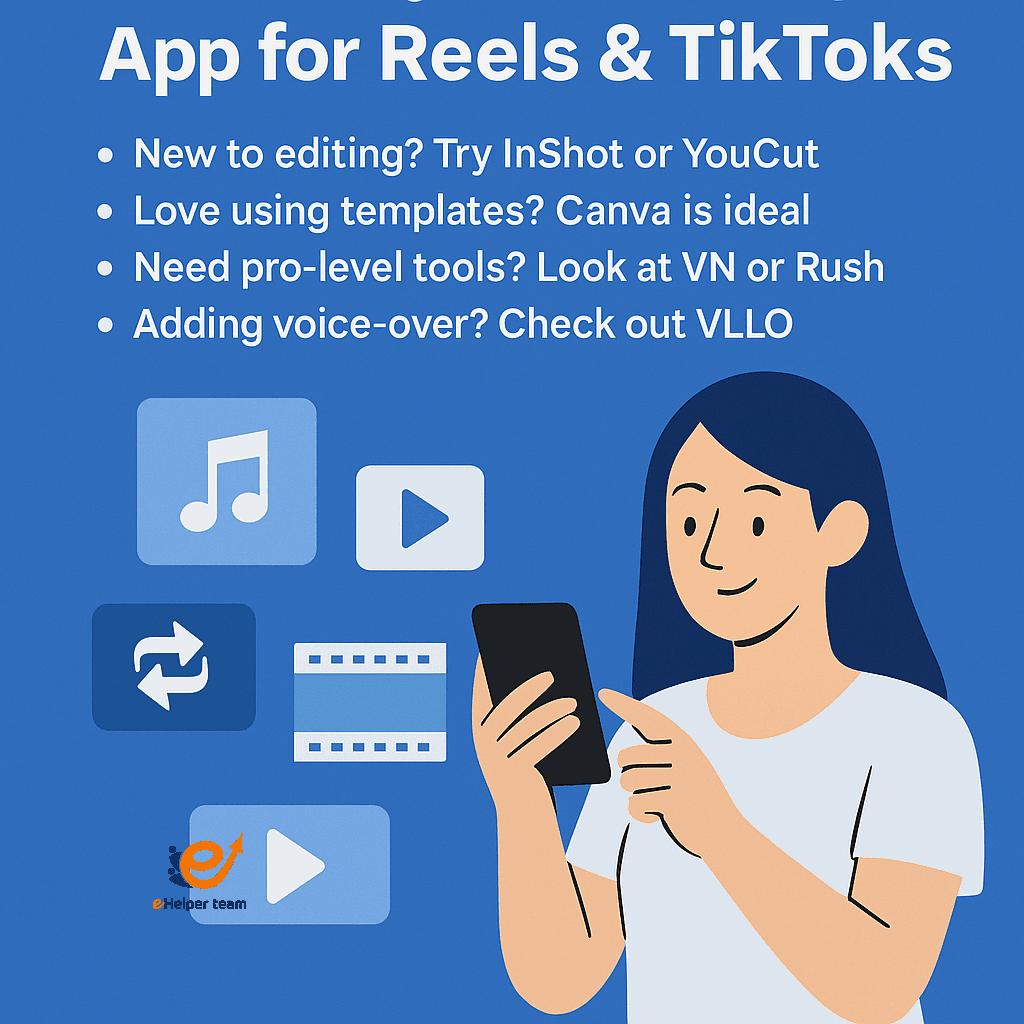
Choosing the Right App for Your Reels & TikToks
Not sure where to begin? Here’s a quick guide:
New to editing? Start with InShot or YouCut
Want templates and branding? Go with Canva
Need pro-level control? VN or Adobe Premiere Rush
Add a voiceover or text emphasis? VLLO is your friend
Each app offers different strengths—so pick one that fits your goal, not just the trend.
Explore More Tools That Make Editing Easier
Want to discover more about automated tools, especially if you’re creating at scale or across teams? Check out this useful archive of automated video editors that make editing even easier.
How to Spot the Best Free Video Editing Apps for Reels Without Wasting Time
Finding the best free video editing apps for reels can feel overwhelming with so many options out there. If you want to create polished content without stress, these core features will help you separate truly useful apps from the rest:
Always check if the app allows export in full HD without limitations
Make sure it supports timeline control for trimming, splitting, and syncing clips
Favor apps with built-in music, transitions, and overlay tools designed for Reels format
AI-powered features like auto-captioning and smart templates are signs of top-tier free editors
Avoid tools that push paid upgrades before letting you access essential features
Choose editors with drag-and-drop functionality to speed up your creative process
Look for those that offer royalty-free music libraries or allow uploading your own audio
Best Use Cases for Each App Based on Your Content Style
Instead of choosing randomly, align your editing app with your content style. Here’s how:
CapCut: Best for trend-driven content and videos using viral sounds
InShot: Great for lifestyle creators and daily vlogging
VN Video: Ideal for cinematic Reels, travel clips, or time-lapse edits
Canva: Perfect for coaches, educators, and business owners making branded content
YouCut: Best choice for creators who shoot and publish on the same day
Adobe Rush: Preferred by users who already edit on desktop and want a synced mobile solution
VLLO: Best suited for narration-heavy or explainer Reels that need accurate caption timing
Mistakes to Avoid When Using Free Editing Apps
Even with the best free video editing apps for reels, creators sometimes fall into traps that reduce content quality. Watch out for these:
Ignoring text legibility—always use contrast and clean fonts
Overusing transitions that distract instead of enhance
Uploading low-resolution exports that get blurred by platforms
Skipping the sound check—bad audio is a fast scroll trigger
Forgetting to optimize for vertical layout in all assets (video, text, stickers)
Frequently Asked Questions
Q1: What is the best free app for adding captions to Reels?
A: CapCut offers auto-caption features powered by AI. VLLO also provides detailed caption timing tools.
Q2: Which video editor has the easiest learning curve?
A: InShot is ideal for beginners, with a simple interface and easy export settings.
Q3: Can I make professional-looking Reels without paying?
A: Yes. Apps like VN and CapCut offer full HD export and pro tools for free.
Q4: What about video transitions—are they free too?
A: Absolutely. CapCut, VN, and YouCut all provide transition effects in their free versions.
Q5: How do I know which app to pick for my content style?
A: Think about your goal—branding, speed, storytelling—and match it to each app’s strengths.
Final Thoughts: Edit Smart, Post Bold
You don’t need to spend a dime to edit like a pro anymore. These best free video editing apps for reels give you powerful tools without a steep learning curve. Whether you want slick transitions, smart captions, or pro-level control, there’s an app here that fits your creative flow.
Download one or two, test them out, and let your next Reel or TikTok stand out. Want to experiment with even more AI tools? Don’t miss this full list of AI video apps for 2025.