only 7 simple steps to create a PayPal business account
In today’s global economy, having a PayPal business account isn’t just convenient — it’s essential for entrepreneurs, freelancers, and eCommerce owners. With over 400 million users worldwide, PayPal offers one of the fastest and most secure ways to send, receive, and manage business payments online.
In this comprehensive guide, you’ll discover the 7 simple steps to create a PayPal business account — including setup, verification, linking your bank, and optimizing your account for global transactions. Whether you’re running a Shopify store, freelancing internationally, or offering digital services, these steps will help you create, verify, and manage your account with ease.
Before we dive in, you can also check this useful article on how to activate a PayPal card in 2024 for a quick overview of PayPal’s verification process.
Only 7 simple steps to create a PayPal business account
Step 1: Understand What a PayPal Business Account Is
A PayPal business account is designed for companies, entrepreneurs, and freelancers who need to receive payments under a business name. Unlike a personal PayPal account, a business account gives you access to advanced features such as:
Accepting payments from clients or customers under your business brand name.
Setting up invoices, subscriptions, and automated billing.
Integrating PayPal with eCommerce platforms like Shopify, WooCommerce, or eBay.
Access to PayPal Business Debit Card and merchant protection tools.
This account type also allows you to handle multiple users within your team, making financial management easier.
To know how it differs from a personal account, explore this comparison on PayPal Business vs. Personal Accounts.
Why You Need It:
If you’re scaling your business internationally or handling online clients, using your personal PayPal account can limit your professional credibility and transaction capacity. A business account provides your company with legitimacy and access to business-grade financial tools.
Step 2: Visit the Official PayPal Website and Start the Sign-Up Process
The first practical step is heading to the official PayPal website and selecting “Sign Up”. Choose the “Business Account” option, not the personal one.
You’ll need to enter essential details like:
Your legal business name (or your full name if you’re a freelancer).
Business email address (preferably not a personal Gmail).
Country of operation and currency preferences.
Once completed, PayPal will ask you to confirm your email address and proceed to your account dashboard.
Step 3: Verify Your Business Details for Enhanced Security
Verification is one of the most crucial steps when creating a PayPal business account. It helps PayPal confirm your identity and secure your transactions.
You’ll need to provide:
Legal name and address of your business.
Business registration documents (if applicable).
Tax identification number or equivalent (depending on your country).
Proof of ownership of the associated bank account or card.
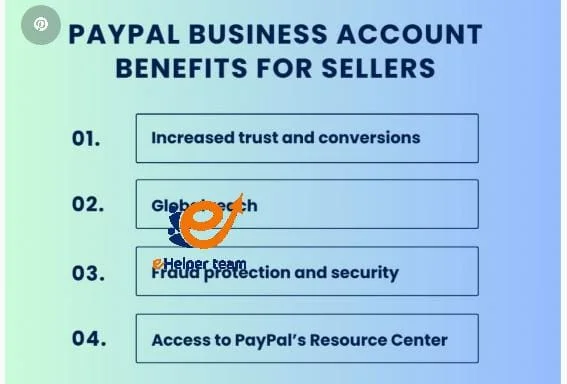
Once you upload your documents, PayPal will review them (usually within 24–48 hours). Verified accounts can send and receive higher transaction amounts, withdraw funds freely, and access premium business features.
Step 4: Link Your Bank Account and Debit Card to PayPal
After verification, it’s time to connect your business bank account and debit card. This ensures you can withdraw funds directly to your bank.
You’ll need to:
Navigate to “Wallet” → “Link a Bank Account.”
Enter your bank details (account number, SWIFT/BIC code, etc.).
Confirm ownership using the two small deposits PayPal sends for verification.
Once confirmed, your bank account is securely linked to your PayPal business account, allowing seamless fund transfers between PayPal and your bank.
Step 5: Set Up Payment Buttons and Create Professional Invoices
Once your PayPal business account is fully verified and connected, the next step is to make it functional for daily transactions. PayPal allows you to create custom payment buttons and professional invoices right from your dashboard.
Here’s how you do it:
Go to your PayPal dashboard and select “Tools” → “All Tools” → “PayPal Buttons.”
Choose your preferred button type: Buy Now, Add to Cart, Donate, or Subscribe.
Customize button details such as item name, price, currency, and shipping.
Copy the HTML code provided by PayPal and paste it onto your website or eCommerce page.
For service providers and freelancers, the invoice feature is a game-changer. It allows you to send branded invoices to clients directly via email. Each invoice includes your company logo, description of services, due date, and payment link.
This feature increases professionalism and ensures that your clients pay faster with fewer disputes.
For detailed information on optimizing invoices and online payment setup, you may explore the PayPal Business Account guide — it provides a deeper understanding of these tools and their customization.
Step 6: Manage Currencies, Transactions, and Security Settings
As your business grows internationally, managing multiple currencies becomes crucial. Your PayPal business account can hold balances in various currencies, such as USD, EUR, GBP, or CAD, allowing you to receive and send payments globally without hassle.
To add or manage currencies:
Log in and navigate to “Money” → “Manage Currencies.”
Select Add Currency and choose from the available list.
You can convert balances at PayPal’s exchange rate or hold them separately for future transactions.
Transaction Management Tools:
View detailed transaction histories.
Export monthly statements for accounting.
Integrate your PayPal with bookkeeping software like QuickBooks or Xero.
Step 7: Optimize and Scale Your PayPal Business Account for Long-Term Success
Setting up your PayPal business account is just the beginning. Optimization ensures long-term success and efficiency in financial management.
Here are key optimization strategies:
Integrate PayPal with your eCommerce platform: Connect it with Shopify, WooCommerce, or Magento for seamless checkout experiences.
Enable automatic transfers: Schedule regular withdrawals to your business bank account to maintain liquidity.
Upgrade to PayPal Business Pro: This offers advanced reporting, customer analytics, and multi-user access.
Utilize PayPal’s merchant protection: Keep documentation for all transactions to protect yourself against chargebacks.
Monitor performance analytics: Regularly check insights from your PayPal dashboard to track sales trends and identify customer behavior.
If you want to know how PayPal integrates with large marketplaces, check this resource on using PayPal on Amazon.
Frequently Asked Questions About PayPal Business Account
1. What is the main difference between a PayPal business account and a personal one?
A business account lets you receive payments under your company’s name, access advanced tools like invoices, and manage multi-user access — ideal for professional operations.
2. Is it free to create a PayPal business account?
Yes, creating the account is free. However, PayPal charges transaction fees (usually 2.9% + $0.30) per payment received.
3. Can I convert my personal PayPal account into a business one?
Absolutely. You can upgrade directly from your settings by selecting “Upgrade to Business Account” and following the verification process.
4. What documents are required for verification?
Typically, PayPal requires your business registration details, tax identification number, proof of address, and an official ID.
5. How long does PayPal business verification take?
Usually 24–48 hours, depending on your country and the completeness of your documents.
6. Can I link multiple bank accounts to one PayPal business account?
Yes. You can link several bank accounts or cards to improve flexibility for different currencies or subsidiaries.
7. Does PayPal support all countries?
PayPal supports over 200 markets, but the availability of features like withdrawals and business accounts varies by region.
8. Can I accept payments without a website?
Yes! You can generate payment links or invoices directly from your PayPal dashboard and share them with clients via email or social media.
9. Is PayPal safe for large transactions?
Yes. PayPal uses industry-grade encryption, fraud monitoring, and seller protection to secure every transaction.
10. What should I do if my PayPal business account is limited or frozen?
Check your email for details, submit the requested documents, and contact PayPal support. Keeping transparent records helps avoid future limitations.
Conclusion
Creating a PayPal business account in 2025 is one of the smartest decisions for any entrepreneur, freelancer, or online store owner. In just seven simple steps, you can open, verify, and optimize your account for global transactions — all while maintaining security, professionalism, and trust with your clients.
From setting up your business information to sending invoices and managing multi-currency payments, every step plays a role in strengthening your brand’s financial foundation.