Highlights on Bluehost Explain by photo how to start Bluehost hosting
When beginners think about creating a website, one of the first names they encounter is Bluehost. Known for reliability, fair pricing, and beginner-friendly tools, it has become one of the most trusted hosting platforms worldwide. In this article, we’ll provide Highlights on Bluehost with a focus on Bluehost Explain—a complete, step-by-step walkthrough with visuals to show you how to start hosting.
If you’d like a full visual guide that covers choosing hosting plans and setup screenshots, check this resource: How to Start a Niche Blog. By the end, you’ll know exactly how to register, set up, and launch your website with ease using Bluehost Explain.
What Is Bluehost and Why Millions Trust It
Founded in 2003, Bluehost is one of the largest and most reliable web hosting providers in the world. It powers more than 2 million websites and has been officially recommended by WordPress.org for many years.


Key Reasons to Choose Bluehost
Reliability: 99.9% uptime guarantee.
Ease of Use: A clean, simple dashboard for beginners.
WordPress Integration: One-click install available.
24/7 Customer Support: Via live chat and phone.
Affordable Plans: Budget-friendly for bloggers and startups.
If you want to see how Bluehost compares with other providers, read: Global Hosting Companies.
Bluehost Explain: A Visual Beginner-Friendly Path
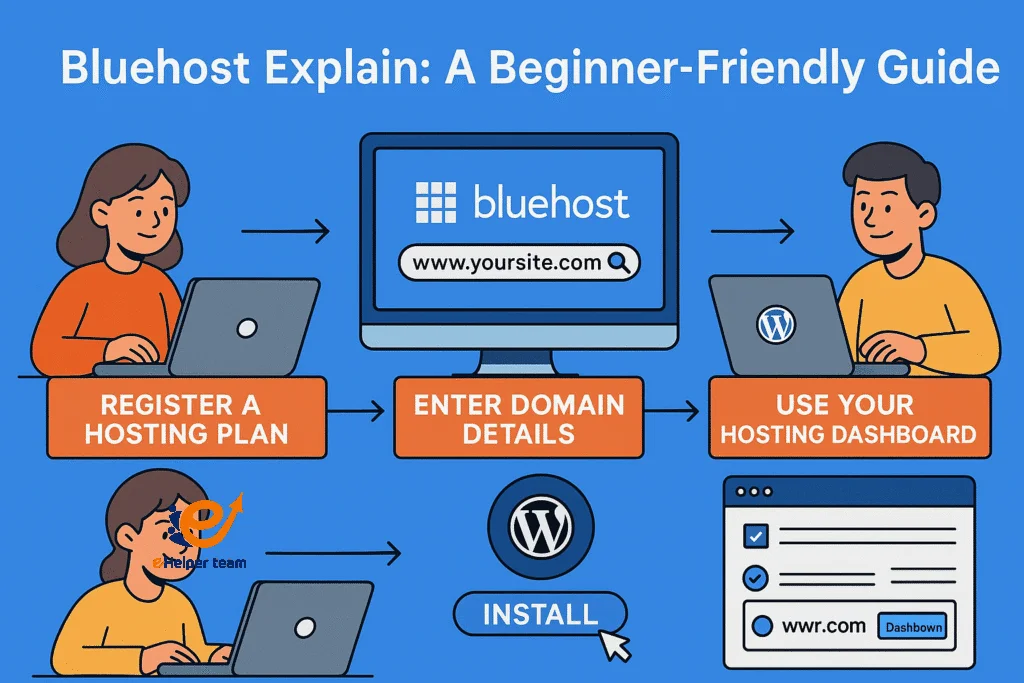
The goal of Bluehost Explain is to guide beginners through every step with clarity. Instead of overwhelming users with technical jargon, Bluehost provides clear instructions and screenshots.
With visuals, you’ll learn:
How to register a hosting plan.
Where to enter your domain details.
How to install WordPress.
How to use your hosting dashboard.
Setting Up Your Bluehost Account: Registration & Plans
Getting started with Bluehost only takes a few minutes.
Steps to register:
Choose your plan – Basic is great for beginners, while Choice Plus or Pro offers extra resources.
Register your domain – Free for the first year.
Fill in your account details – name, email, and payment information.
Pick add-ons (optional) – Domain privacy and automated backups.
Activate SSL – Ensures your site runs on HTTPS.
Want to explore how Bluehost fits among other hosts? See: Top 9 Global Hosting Companies (2025).

Installing WordPress on Bluehost Made Easy
Bluehost is one of the most WordPress-friendly hosts available. With its one-click installer, you’ll have WordPress running in no time.
Steps to install WordPress:
Log in to your Bluehost dashboard.
Go to My Sites → Create Site.
Enter your site’s name and tagline.
Bluehost installs WordPress automatically.
No coding, no database setup—just a smooth process.
Managing Your Website: Dashboards & Hosting Settings
Once WordPress is installed, you’ll work with two dashboards:
WordPress Dashboard → Customize your theme, add plugins, write posts.
Bluehost Dashboard → Manage domains, enable SSL, monitor site performance.
Essential tools you’ll use:
SSL certificate (free).
Backup and restore features.
Security scans.
Caching for performance.

Comparing Bluehost with Other Hosting Providers
Pros:
Free domain + SSL.
Affordable starter plans.
One-click WordPress install.
Cons:
Higher renewal rates than the first term.
Some advanced features require upgrades.
For a broad market view, see: Top 9 Global Hosting Companies (2025).
Common Issues Beginners Face (and Fixes)
Slow speed – Enable caching, compress images, and consider a CDN.
Email Confusion – Use Bluehost’s email wizard to set up your email addresses.
Plugin conflicts – Update or disable problematic plugins.
Mixed-content HTTPS errors – Ensure WordPress settings use https://.
Step-by-Step Checklist for Beginners
Before you begin
Define your site’s goal.
Choose a domain name.
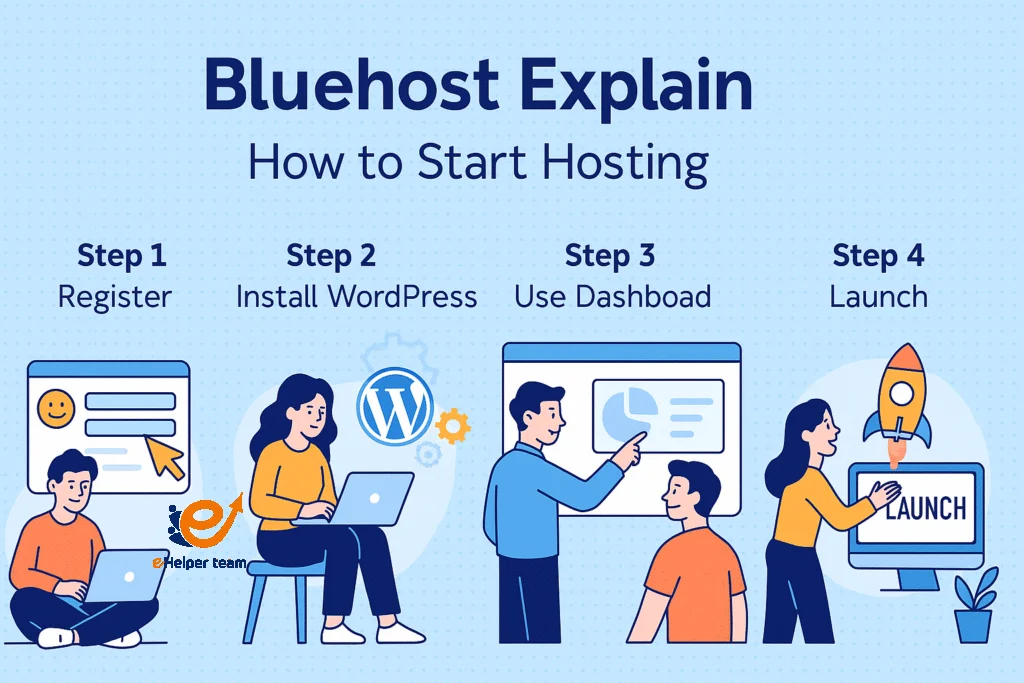
Step 1: Sign up
Select a hosting plan.
Register your free domain.
Enter account details.
Step 2: Set up hosting
Access your dashboard.
Activate your SSL certificate.
Step 3: Install WordPress
Use one-click installer.
Step 4: Customize
Pick a theme.
Install essential plugins.
Create key pages.
Step 5: Optimize
Turn on caching.
Schedule backups.
Step 6: Launch
Publish your first post or product.
Share your site publicly.
Tips to Maximize Bluehost Hosting
Choosing Bluehost is just the first step; the real success comes from knowing how to use it effectively. Here are practical tips to get the most out of your Bluehost hosting:
1. Pick the Right Plan for Your Needs
Don’t just go for the cheapest option without considering your goals. If you’re running a simple blog, the Basic plan is enough. But if you’re building a business website or expect higher traffic, upgrading to Choice Plus or Pro gives you more storage, advanced backup tools, and better performance.
2. Always Enable SSL for Security
Bluehost provides a free SSL certificate with every plan. Make sure you activate it immediately to serve your site on HTTPS. This not only protects user data but also improves SEO, as Google considers SSL a ranking factor.
3. Use a Lightweight WordPress Theme
Speed is critical. Avoid heavy, bloated themes that slow down your site. Instead, choose fast, responsive themes like Astra, GeneratePress, or Kadence. Pair them with Bluehost’s caching options for a smoother experience.
4. Install Essential Plugins
To maximize functionality, install a few but powerful plugins:
Yoast SEO or Rank Math → Boost search engine visibility.
WP Super Cache or W3 Total Cache → Improve loading speed.
UpdraftPlus → Automate backups.
Wordfence → Add a layer of security.
Keep plugins updated to prevent security vulnerabilities.
5. Schedule Regular Backups
Although Bluehost offers backup options, it’s smart to set up your own schedule. Use UpdraftPlus or Jetpack to store backups in Google Drive or Dropbox. That way, you can quickly restore your site if something goes wrong.
Frequently Asked Questions (FAQ)
1. Is Bluehost good for beginners with no technical skills?
Yes, Bluehost is one of the best hosting providers for beginners. It has an easy-to-use dashboard, one-click WordPress installation, and built-in tools that simplify complex tasks like SSL setup or backups. Even if you’ve never built a website before, Bluehost guides you step-by-step. Plus, their 24/7 support ensures help is always available.
2. Does Bluehost include a free domain name?
Yes, every Bluehost hosting plan comes with a free domain name for the first year. During the sign-up process, you’ll be asked to register your domain. If you don’t have a name ready, you can skip this step and claim it later through your dashboard. After the first year, you’ll need to renew the domain at standard rates.
3. How easy is it to install WordPress on Bluehost?
Installing WordPress is extremely easy. You simply log in to your hosting account, go to My Sites → Create Site, and Bluehost will install WordPress for you in one click. This process takes just a few minutes, and you’ll be ready to start customizing your site without touching any code. The Bluehost Explain method makes this process even clearer by providing step-by-step visuals to guide beginners through every detail.
4. What kind of websites can I build with Bluehost?
Bluehost Explain supports all types of websites, including:
Blogs for personal or professional content.
Business websites with contact forms and service pages.
Online stores using WooCommerce.
Portfolios for creatives, designers, or freelancers.
Membership sites with restricted content.
This flexibility is why Bluehost is recommended by WordPress.org.
5. What uptime does Bluehost guarantee?
Bluehost provides a 99.9% uptime guarantee, meaning your website will stay online almost all the time. Occasional maintenance or server updates may cause short downtimes, but in general, Bluehost’s reliability is strong enough for personal blogs, business sites, and online stores.
6. Is Bluehost affordable compared to other hosting companies?
Yes, Bluehost offers some of the most affordable starter plans, starting at just a few dollars per month. Compared to SiteGround or WP Engine, Bluehost is more budget-friendly. However, you should know that renewal rates are higher than the initial offer. Even so, Bluehost remains cost-effective because it bundles features like a free domain, free SSL, and one-click WordPress installation.
7. Can I migrate an existing website to Bluehost?
Yes, Bluehost makes website migration easy. For WordPress users, there’s a free migration plugin that automatically transfers your site. For more complex websites, Bluehost offers professional migration services (paid). This ensures your site moves smoothly without downtime or data loss, and it’s another example of how Bluehost Explain simplifies hosting tasks for beginners.
8. What security features does Bluehost provide?
Bluehost includes several security features to protect your site:
Free SSL certificate for all websites.
Automatic backups (an optional add-on on some plans).
Malware scanning and removal tools.
Spam protection for emails.
Secure account login and two-factor authentication.
For e-commerce or sensitive sites, upgrading to advanced security is highly recommended.
Final Thoughts: Why Bluehost Remains a Top Choice
From free domains to WordPress integration, Bluehost remains one of the most reliable and user-friendly hosting providers for beginners. The Bluehost Explain approach, with screenshots and step-by-step guides, makes it especially easy for first-time users to launch their sites confidently.