How to use a Facebook pixel step by step
In today’s fast-evolving digital advertising landscape, knowing how to use a Facebook pixel step by step can be the key to unlocking data-driven marketing success. The Facebook pixel (now called Meta Pixel) allows advertisers to track user behavior, measure campaign performance, and optimize ads to reach the most relevant audience. Without it, businesses miss out on the ability to retarget visitors and understand what’s actually driving conversions.
If you’re new to Facebook marketing or still trying to decode the pixel setup process, this guide breaks down everything you need in a clear, structured, and actionable way — no tech jargon, just practical steps.
For a deeper dive into Facebook ad strategies and common mistakes beginners should avoid, you can check this insightful post on Facebook Ads mistakes beginners make, which perfectly complements the concepts we’ll explore here.
Let’s begin by understanding what a Facebook pixel is and how it can elevate your digital marketing performance.


What Is a Facebook Pixel and Why It’s Vital for Your Business
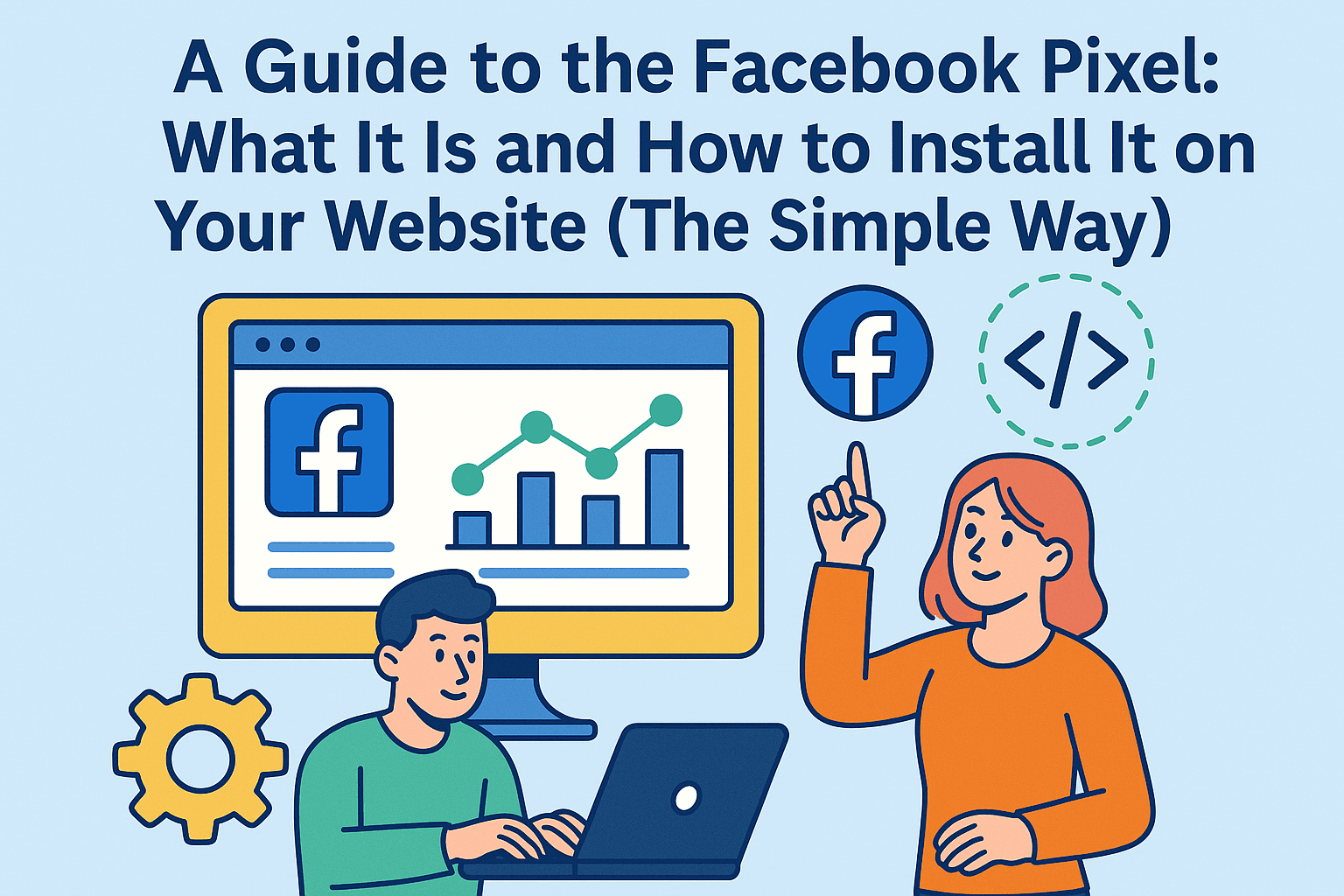
Before you learn how to use a Facebook pixel, it’s essential to understand what it actually does. A Facebook pixel is a short piece of tracking code that you place on your website. Once installed, it collects data that helps you measure the effectiveness of your Facebook ads by monitoring the actions people take after seeing them.
For example, if someone clicks on your ad, visits your product page, and later makes a purchase, the Facebook pixel records that entire journey. This information helps you optimize ad delivery to the people most likely to convert.
Key Benefits of Using Facebook Pixel
Advanced audience insights: Track customer behavior on your site and create lookalike audiences.
Conversion tracking: Measure the real impact of your ads beyond simple clicks.
Ad optimization: Automatically deliver ads to users who are more likely to take desired actions.
Retargeting opportunities: Bring back visitors who left your site without completing a purchase.
Many marketers consider the pixel the foundation of modern Facebook advertising. In fact, a well-configured pixel can mean the difference between a profitable campaign and wasted ad spend.
If you’re looking to fine-tune your Facebook retargeting strategy, check out this detailed guide on how to win back lost website visitors, which expands on the retargeting power of Meta Pixel.
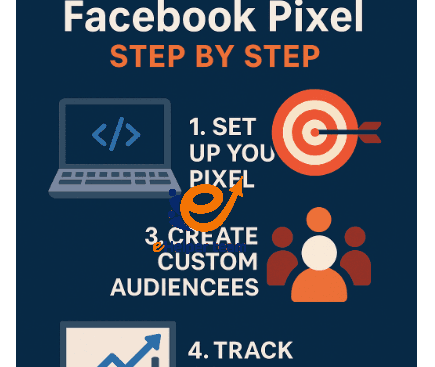
Step-by-Step Guide to Getting the Most Out of Your Facebook Pixel
Step 1: Setting Up Your Facebook Pixel Correctly
Now that you understand the basics, let’s get hands-on with how to use a Facebook pixel step by step.
Setting up the pixel might sound technical, but Facebook has simplified the process significantly.
Creating a Pixel in Meta Events Manager
Go to Meta Events Manager from your Facebook Business Suite.
Click “Connect Data Sources” → “Web.”
Choose Facebook Pixel, then name your pixel (e.g., “MyShop Pixel”).
Enter your website URL to check for easy integration options.
Once created, you’ll receive a unique pixel ID — this is what you’ll install on your site.
Installing the Pixel on Your Website
There are two main installation options:
Manual method: Copy the pixel code and paste it into your site’s <head> section.
Partner integration: If you’re using Shopify, WordPress, or WooCommerce, connect your pixel directly through built-in integrations.
Testing Your Pixel
Use the Meta Pixel Helper Chrome extension to ensure your pixel is firing correctly. It detects any issues and confirms events like “PageView” or “Purchase.”
A correctly installed pixel begins collecting valuable data instantly, allowing you to make smarter marketing decisions.
For small businesses starting with minimal budgets, this guide on $5 a Day Facebook Ads Strategy can help you combine your pixel data with efficient daily ad spending tactics.
Step 2: Understanding Pixel Events and Conversions
Once your pixel is active, the next step in learning how to use a Facebook pixel involves understanding events — the actions your visitors take that the pixel can track.
Standard Events
Facebook provides predefined events such as:
ViewContent: When a visitor views a specific page or product.
AddToCart: When a visitor adds an item to their shopping cart.
InitiateCheckout: When they begin the checkout process.
Purchase: When they complete a transaction.
Custom Events
You can also create custom events tailored to your business needs — for instance, tracking newsletter sign-ups or contact form submissions.
Why Events Matter
By tracking these events, you gain insight into how users interact with your site. This helps in:
Identifying conversion bottlenecks.
Adjusting ad creative and messaging.
Measuring the true ROI of each campaign.
When optimized, event data allows you to automate your ad delivery for the highest impact — ensuring your ads reach people most likely to buy, subscribe, or engage.
To further improve website engagement, you might want to explore this article on increasing website traffic from a Facebook page, which pairs perfectly with using the Facebook pixel effectively.
Step 3: Using the Pixel for Retargeting and Audience Building
Now comes one of the most powerful parts of learning how to use a Facebook pixel step by step: retargeting. This strategy helps you reconnect with people who have already shown interest in your brand.
Creating Custom Audiences
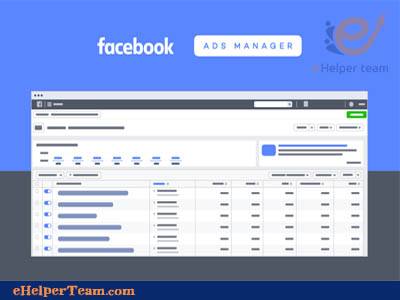
Inside your Facebook Ads Manager, go to “Audiences” and create a Custom Audience based on your pixel data. For example:
People who visited your website in the past 30 days.
Visitors who added items to the cart but didn’t check out.
Users who viewed a specific product category.
Creating Lookalike Audiences
Once your pixel has enough data, you can create Lookalike Audiences — new users who share similar behaviors and demographics to your existing customers.
Benefits of Retargeting
Drastically increases your conversion rates.
Reduces ad waste by focusing on warm leads.
Strengthens brand recall by keeping your business top-of-mind.
Retargeting is where your pixel data becomes truly valuable. By refining your audience, you’re not just guessing who’s interested — you’re targeting people who have already interacted with your brand.
Step 4: Optimizing Your Pixel Data for Maximum ROI
Once you’ve installed and configured your Facebook pixel, the next step in mastering how to use a Facebook pixel is to learn how to analyze and optimize the data it gathers. The more data your pixel collects, the smarter and more efficient your ad targeting becomes.
Analyzing Pixel Insights
Go to Meta Events Manager and review the metrics for key actions like “ViewContent,” “AddToCart,” and “Purchase.” This data shows you which parts of your funnel perform best and where users drop off.
Adjusting Your Ad Strategy
When you identify high-performing events, adjust your campaigns to capitalize on them:
Increase ad spend on audiences that deliver the most conversions.
Test different creatives for audiences that show interest but don’t convert.
Exclude audiences who have already purchased to avoid wasting budget.
Setting Up Custom Conversions
Custom conversions help you track specific user goals, such as downloading an ebook or signing up for a newsletter. To create one, go to your Events Manager, click on “Custom Conversions,” define your event URL or parameters, and assign a name and value.
Key Tip:
Always let your pixel run for at least two weeks before making major decisions. This allows you to use a Facebook pixel effectively, giving it enough time to gather accurate data and optimize ad delivery.
If you manage multiple ad campaigns, remember that pixel optimization isn’t just about quantity — it’s about quality interactions that lead to measurable results.
Step 5: Troubleshooting Common Pixel Issues
Even experienced marketers encounter challenges when learning how to use a Facebook pixel step by step. Pixel errors can lead to inaccurate data or poor ad performance — so let’s go through some common issues and how to fix them.
1. Pixel Not Firing Properly
If your pixel isn’t firing, double-check:
The pixel code is placed in the <head> section of your site.
No ad-blockers or browser extensions are preventing pixel tracking.
Your site doesn’t use outdated scripts that conflict with Facebook’s tracking.
The Meta Pixel Helper browser tool can diagnose most of these problems instantly.
2. Duplicate Pixel Events
Sometimes, you’ll see two “PageView” or “Purchase” events for the same action. This usually happens when:
You’ve installed multiple pixels accidentally.
A plugin duplicates tracking.
Fix it by checking your code and removing unnecessary installations.
3. Incorrect Event Setup
When events are mislabeled (e.g., “Purchase” on a product page view), your analytics will misrepresent data. Always verify each event trigger with a test conversion before launching major campaigns.
4. Delayed Data Reporting
Pixel data doesn’t always appear instantly. Allow up to 24 hours for event data to sync correctly, especially during large ad traffic spikes.
By staying vigilant and regularly checking your setup, you ensure the pixel continues to provide reliable, actionable insights.

Step 6: Advanced Facebook Pixel Strategies for 2025
Now that you’ve mastered the basics of how to
Use a Facebook pixel. Let’s move to advanced techniques that professionals use to drive exponential ad growth.
1. Leverage Micro-Conversions
Instead of only tracking big goals like purchases, use a Facebook pixel to set up micro-conversions such as time on page, video views, or form interactions. These data points reveal user intent and help refine your targeting funnel.
2. Combine Pixel Data with Offline Conversions
By uploading CRM or sales data into Meta Business Manager, you can match offline events (like in-store purchases) with online ad activity — giving you a full picture of customer behavior.
3. Segment Audiences by Engagement Level
Use pixel data to create segmented audiences:
High-intent users (those who reached checkout)
Medium-intent users (added to cart but didn’t purchase)
Low-intent users (viewed content only)
Each group can receive a different ad creative to match their buying stage.
4. Use Pixel Data for Cross-Platform Marketing
Sync your Facebook pixel data with Instagram Ads or Meta Audience Network to expand reach while maintaining precise targeting accuracy.
5. A/B Testing for Continuous Improvement
Constantly test your ad creatives, CTAs, and landing pages using your pixel data. The more you experiment, the better you’ll understand which elements drive real conversions.
By applying these advanced strategies, you transform your Facebook pixel from a tracking tool into a data powerhouse that fuels smarter, more profitable ad decisions.
Frequently Asked Questions (FAQs) About How to Use a Facebook Pixel
1. What exactly is a Facebook pixel?
It’s a piece of tracking code from Facebook that collects user behavior data from your website to help you measure and optimize ad performance.
2. Is the Facebook pixel free to use?
Yes. The Facebook pixel (Meta Pixel) is completely free. However, you pay for the ads you run based on the data it collects.
3. How can I install a Facebook pixel on WordPress?
You can either manually paste the code in your site header or use plugins like “PixelYourSite” for easy integration.
4. How many pixels can I create in one account?
You can create multiple pixels per Business Manager account, but it’s recommended to have one primary pixel per business domain.
5. Can I track multiple websites using the same pixel?
Yes, though it’s better to use separate pixels for unrelated sites to maintain data accuracy.
6. How do I know if my pixel is working correctly?
Install the Meta Pixel Helper browser extension. It will display active pixel events and flag any issues.
7. How long does it take to see data in Events Manager?
Typically, data appears within a few minutes to a few hours. However, during peak traffic, syncing may take up to 24 hours.
8. Can I use Facebook pixel for retargeting on Instagram?
Absolutely. Since Facebook and Instagram share the same Meta Ads ecosystem, pixel data works across both platforms.
9. Does the Facebook pixel comply with GDPR?
Yes, as long as you notify users through a cookie consent banner and allow them to opt out of tracking.
10. How do I get the best results using the pixel?
The key lies in consistent monitoring, testing, and optimizing. Combine pixel insights with A/B testing, and update events as your business evolves.
Conclusion
In 2025, success in digital advertising isn’t about spending more — it’s about spending smarter. Learning how to use a Facebook pixel step by step gives you the power to track real user actions, build stronger audiences, and fine-tune every campaign for maximum ROI.
Whether you’re running a local shop or managing global e-commerce campaigns, the pixel acts as your digital compass — guiding every marketing decision with data-backed precision.
So don’t just install it — use it strategically, monitor it regularly, and optimize continuously. Your future campaigns (and profits) will thank you.