Google search console verify domain property with 12 steps
If you want your website to perform well in search results, improve visibility, and gain insights about how Google interacts with your content, you must Google Search Console verify your domain property. This process confirms your site ownership and unlocks valuable performance metrics like impressions, clicks, and indexing status.
Verifying your domain not only helps you understand how your website ranks but also strengthens your security and authority in the search ecosystem. It ensures that only verified owners have access to sensitive analytics data and site management tools.
Step-by-Step Guide to Google Search Console Verify Process
Step 1: Access Google Search Console and Choose the Property Type


Start by signing into Google Search Console using your main Google account. You’ll be prompted to choose between two property types:
Domain Property: Covers all subdomains and protocols (http, https, www, non-www).
URL Prefix Property: Tracks only one version of your domain.
For complete data and control, always choose the Domain Property. This gives you a holistic view of your entire site, allowing you to track both desktop and mobile data within one dashboard.
A domain property provides full coverage across all pages, making it the preferred option for professionals managing multiple subdomains.
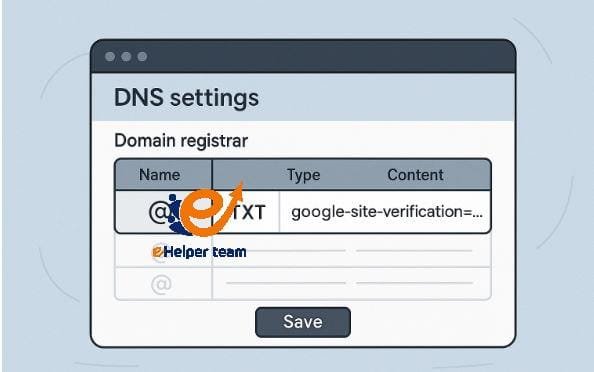
Step 2: Copy the DNS TXT Record Generated by Google
Once you’ve entered your domain name, Google will generate a DNS TXT record for you. This record verifies your ownership of the domain.
To proceed:
Copy the TXT record shown on your screen.
Keep it handy in a notepad or text file.
Leave your Search Console tab open for later.
This record is like a digital signature proving that you have access to your domain’s DNS configuration.
Step 3: Log In to Your Domain Registrar or DNS Host
Next, visit your domain registrar or hosting provider—the platform where your domain is managed (e.g., GoDaddy, Cloudflare, or Namecheap).
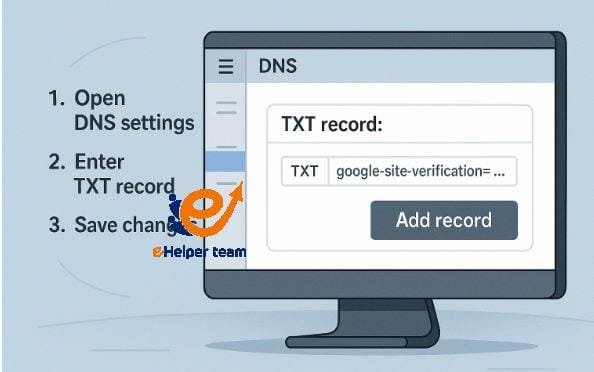
Navigate to the DNS Management section and locate the area for TXT records.
Then, paste the TXT record you copied earlier into the new record field.
Once done, save your changes. Keep in mind that DNS updates can take several hours (or even up to 24 hours) to propagate globally, depending on your provider.
Step 4: Verify Your Domain in Google Search Console
After saving your TXT record, go back to Google Search Console and click the Verify button.
If Google can detect the record, you’ll get a success message instantly.
If verification fails, don’t worry — the DNS change might not have propagated yet. Wait a few hours, then click Verify again.
Once it succeeds, congratulations — your domain is officially verified!
Step 5: Access and Explore Your Verified Property
Now that verification is complete, your Search Console dashboard will start populating data. You’ll gain access to valuable tools for:
Performance Tracking: Monitor your keywords, impressions, and average CTR.
Coverage Reports: Identify and fix indexing issues.
Enhancements: Optimize usability for mobile and desktop devices.
To boost your SEO performance, always ensure Google indexes your latest updates. You can do this easily by using the submit link to Google option to notify Google about your new pages faster.
Step 6: Add a Sitemap for Better Indexing
A sitemap is essential to guide Google’s crawlers through your website structure.
You can add it by navigating to:
Index → Sitemaps → Add New Sitemap
Then, type:
and hit Submit.
Your sitemap helps Google understand which pages are important and should be indexed first.
For an in-depth understanding of sitemap creation, check out articles that explain the role of XML sitemaps in boosting visibility and crawl efficiency. This is especially useful if you manage large sites or blogs.
Step 7: Optimize Your Meta Descriptions for Higher CTR
After you Google Search Console verify your site, one of the key areas to focus on is meta descriptions.
Google displays these snippets in search results, and they have a direct impact on your click-through rate.
Make sure your meta descriptions are:
Around 155–160 characters long.
Include your primary keyword.
Clearly describe what users will find on the page.
For best practices, visit this helpful resource on meta description SEO.
A compelling description can dramatically increase your site’s search traffic.
Step 8: Analyze Your Search Performance Reports
Once your site begins collecting data, you’ll have access to insights that show which keywords are driving the most traffic.
Under the Performance tab, analyze metrics like:
Clicks
Impressions
CTR (Click-Through Rate)
Average Position
Use this information to identify your best-performing content and optimize underperforming pages.
Look for pages with high impressions but low CTR — these are ideal candidates for rewriting meta descriptions or titles.
Step 9: Inspect and Troubleshoot Individual URLs
The URL Inspection Tool in Google Search Console is your best friend when it comes to diagnosing indexing problems.
Simply paste any URL from your site into the tool and click Inspect. It will show:
Whether the page is indexed.
The last crawl date.
Any issues preventing it from appearing in search results?
If you encounter errors such as “Crawled but not indexed” or “Duplicate without user-selected canonical”, fix them and click Validate Fix.
This feature ensures your pages are regularly re-evaluated by Google’s crawlers.
Step 10: Use Performance Data to Improve Your SEO Strategy
After successful verification and setup, use GSC data to make informed SEO decisions.
For example:
Track which keywords perform best.
Find out which pages need optimization.
Identify the countries and devices where your traffic comes from.
To push your visibility even further, consider optimizing your visuals. You can find practical advice on image ranking that explains how to enhance images for Google Images and gain additional search traffic.

Step 11: Troubleshoot Verification Errors
Even after you Google Search Console verify your domain, you may sometimes face issues—especially when migrating or changing DNS settings. Common verification problems include:
Invalid DNS Record:
This happens when the TXT record isn’t correctly formatted or has extra spaces. Double-check that it matches Google’s record exactly.Propagation Delays:
Some registrars take longer to update DNS entries. You might need to wait up to 48 hours for the verification to process.Domain Transfer or DNS Change:
If you move your domain to a new hosting provider, your verification may expire. In that case, simply repeat the verification process by adding the new TXT record to your new DNS settings.
Always keep a backup of your verification record. If your DNS settings reset, you can quickly re-add it without starting from scratch.
To maintain verification consistency, periodically check your GSC property settings—especially after domain updates or security changes.
Step 12: Maintain and Monitor Your Verified Property
Once your domain is verified, your SEO work doesn’t stop there. Regularly monitoring your property ensures that your website continues to meet Google’s indexing and performance standards.
Here are key practices to maintain your verified property effectively:
Check Index Coverage: Make sure all important pages are indexed and there are no crawl errors.
Monitor Core Web Vitals: Google now prioritizes speed, stability, and interactivity as ranking factors.
Use the Performance Report: Identify high-performing keywords and replicate their structure across your site.
Optimize for Mobile: Over 65% of searches come from mobile—ensure your site loads fast and displays correctly.
Finally, continue to improve your SEO by submitting updated sitemaps, fixing broken links, and enhancing user experience. Keeping your property active and optimized ensures that your Google Search Console verify process continues to add measurable value.
Frequently Asked Questions (FAQs)
1. What is Google Search Console used for?
Google Search Console is a free tool that helps website owners monitor, maintain, and troubleshoot their site’s presence in Google Search results. It provides insights on indexing, ranking, traffic, and performance.
2. Why should I verify my domain property?
Verifying your domain property proves ownership and gives you full access to site-wide data, including subdomains and multiple protocols. Without verification, you can’t view performance reports or fix issues.
3. How do I verify a domain using DNS records?
You can Google Search Console verify your domain by adding a TXT record to your DNS host. Once the record is detected, Google will confirm your ownership and activate your Search Console property.
4. What’s the difference between Domain Property and URL Prefix Property?
The Domain Property tracks data across all URLs and subdomains, while the URL Prefix Property limits tracking to a single URL format. Domain verification provides a broader and more complete dataset.
5. How long does domain verification take?
Verification can happen instantly if your DNS propagates quickly, but in some cases, it might take up to 48 hours. The speed depends on your domain registrar’s update frequency.
6. What happens if I delete my TXT record after verification?
If you delete the record, Google may revoke access after a short grace period. Always keep your verification record intact unless you plan to remove your property permanently.
7. Can I verify multiple domains in one Google Search Console account?
Yes, you can. Google search console verifyallows users to verify multiple domain properties under the same account, making it easy for agencies and SEO professionals to manage several sites.
8. Does Google Search Console affect rankings directly?
No, GSC itself doesn’t affect rankings—but it provides the insights you need to improve them. Using its data, you can refine your SEO strategy, fix technical errors, and improve site quality, which all influence rankings.
9. How do I know if my pages are indexed correctly?
Use the URL Inspection Tool in your GSC dashboard. It shows whether a page is indexed and flags any errors like “noindex” tags or canonical mismatches.
10. How can I use GSC data to improve my content strategy?
You can analyze keywords, impressions, and CTRs to identify what’s performing well. Then, build more content targeting similar keywords, optimize low-CTR pages, and update outdated content to maintain traffic growth.
Conclusion
Verifying your domain property in Google Search Console is more than a technical task—it’s a long-term investment in your site’s visibility and credibility. By completing the Google Search Console verify process, you unlock access to detailed insights that guide smarter SEO decisions.
Google search console verify Whether you’re managing a personal blog, e-commerce platform, or business website, consistent monitoring through GSC allows you to:
Detect indexing and crawl errors early.
Measure the impact of your content updates.
Enhance page performance and Core Web Vitals.
Optimize for the keywords that matter most.
Pair this verification with ongoing practices like refining your meta description SEO, optimizing for mobile, and improving your image ranking to build a stronger digital footprint in 2025.
If you haven’t yet completed your verification, now’s the perfect time to do it. Follow these 12 steps carefully, and you’ll have a fully verified, data-rich domain ready to perform at its peak in Google Search results.